Drift Alert
Alerts automatically flag significant changes in your AI visibility data. Instead of manually scanning every chart for anomalies, GrackerAI watches your data continuously and tells you when something worth acting on has happened.
Where to Find It
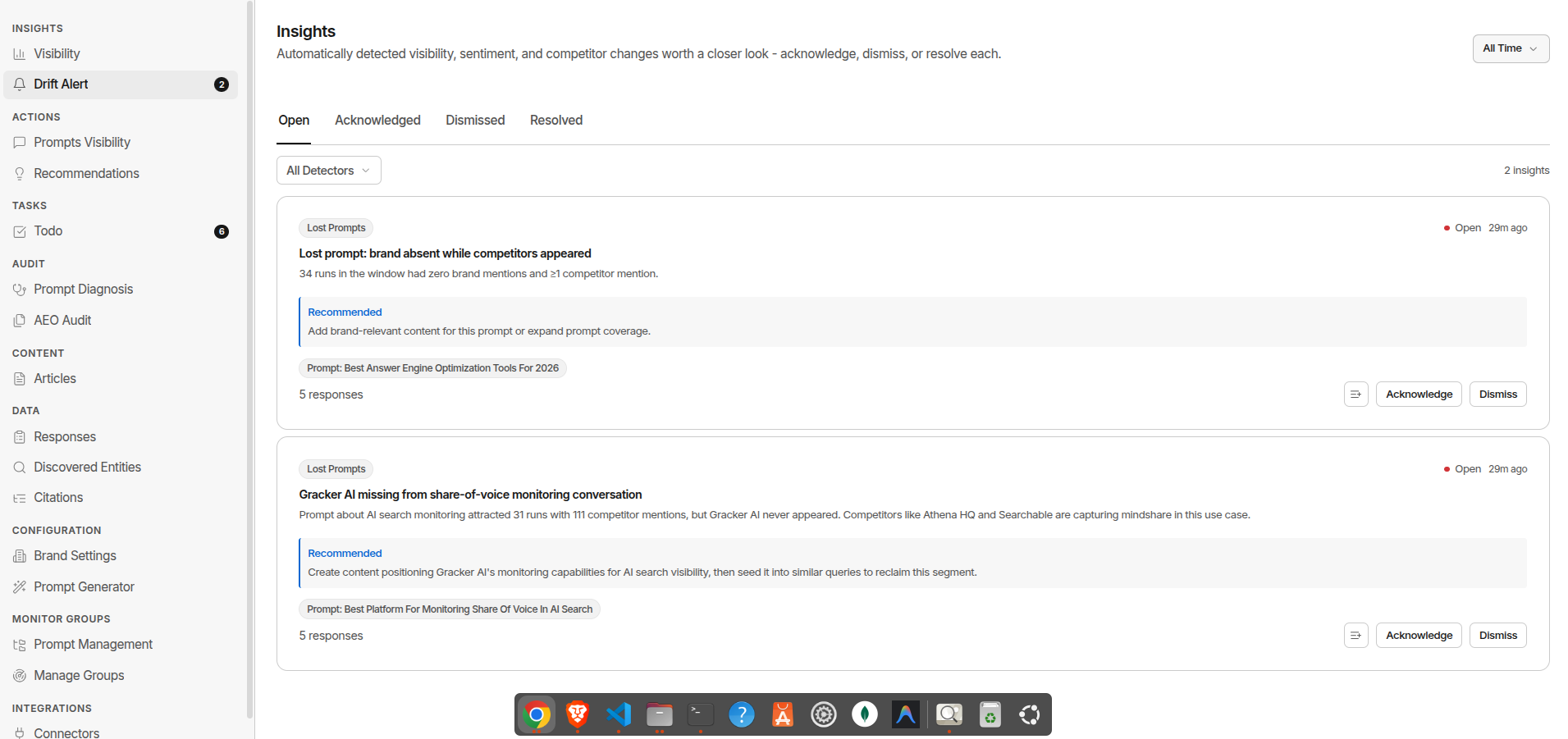
Go to Insights → Drift Alert in the sidebar.
Alert Types
Each alert is generated by a specific detector. The detector type tells you exactly what changed:
| Detector | What It Means | |---|---| | Visibility Decline | Your overall visibility score dropped significantly on a prompt or surface | | Sentiment Shift | AI tone toward your brand changed. positive to neutral, or neutral to negative | | Lost Prompts | Prompts where your brand was consistently appearing have gone silent | | Competitor Surge | A tracked competitor gained a large share of mentions across your prompts | | Position Decay | Your brand is still appearing but being mentioned later in AI responses. losing prominence | | Surface Gap | Your brand appears on most surfaces but has low or zero visibility on a specific one | | New Citation Domain | A new third-party domain started appearing as a citation source in your category | | Citation Loss | A domain that was regularly citing your content has stopped | | Geo Gap | Your brand has strong visibility in some geographies but is absent in others |
Alert Structure
Each alert shows:
- Headline. a one-sentence description of what changed
- Diagnosis. why GrackerAI flagged this, with supporting data points
- Recommendation. a suggested action to investigate or address the alert
- Severity. how significant the change is (low / medium / high)
- Confidence. how certain GrackerAI is that this is a real signal, not noise
- Scope. which prompt, competitor, or entity this alert is about
Alert Status Lifecycle
| Status | What It Means | |---|---| | Open | New alert that hasn’t been reviewed | | Acknowledged | You’ve seen it and are aware of the issue | | Dismissed | You’ve reviewed it and decided no action is needed (with optional reason) | | Resolved | The underlying issue has been addressed |
To acknowledge: Click Acknowledge on any open alert.
To dismiss: Click Dismiss and optionally enter a reason. useful for snoozing recurring alerts on stable patterns.
To reopen: If you dismissed or resolved an alert prematurely, click Reopen to bring it back to active status.
Filtering Alerts
Use the status tabs to switch between Open, Acknowledged, Dismissed, and Resolved alerts. Use the detector filter to focus on a specific type. for example, showing only Competitor Surge alerts during a competitive campaign.
Brand-Scoped vs Workspace-Scoped
- Brand-scoped: Alerts about a specific brand’s visibility, sentiment, citations, or prompts
- Workspace-scoped: Alerts that aggregate across all active brands in your workspace
Both appear in the same Alerts view. The scope is shown on each alert row.
Manually Triggering a Recompute
GrackerAI recomputes alerts automatically after each monitor run. If you want fresh alerts immediately. for example, after publishing major new content. click Recompute Alerts at the top of the page.