Prompt Mining
Prompt Mining turns real search behaviour into monitoring prompts. It pulls the questions people already ask - from your Google Search Console, your Bing AI Performance export, and the topics you track - cleans them, groups them by topic, and hands you a reviewed list you can add to a monitor group in one click. It's a brainstorm tool - not an autopilot.
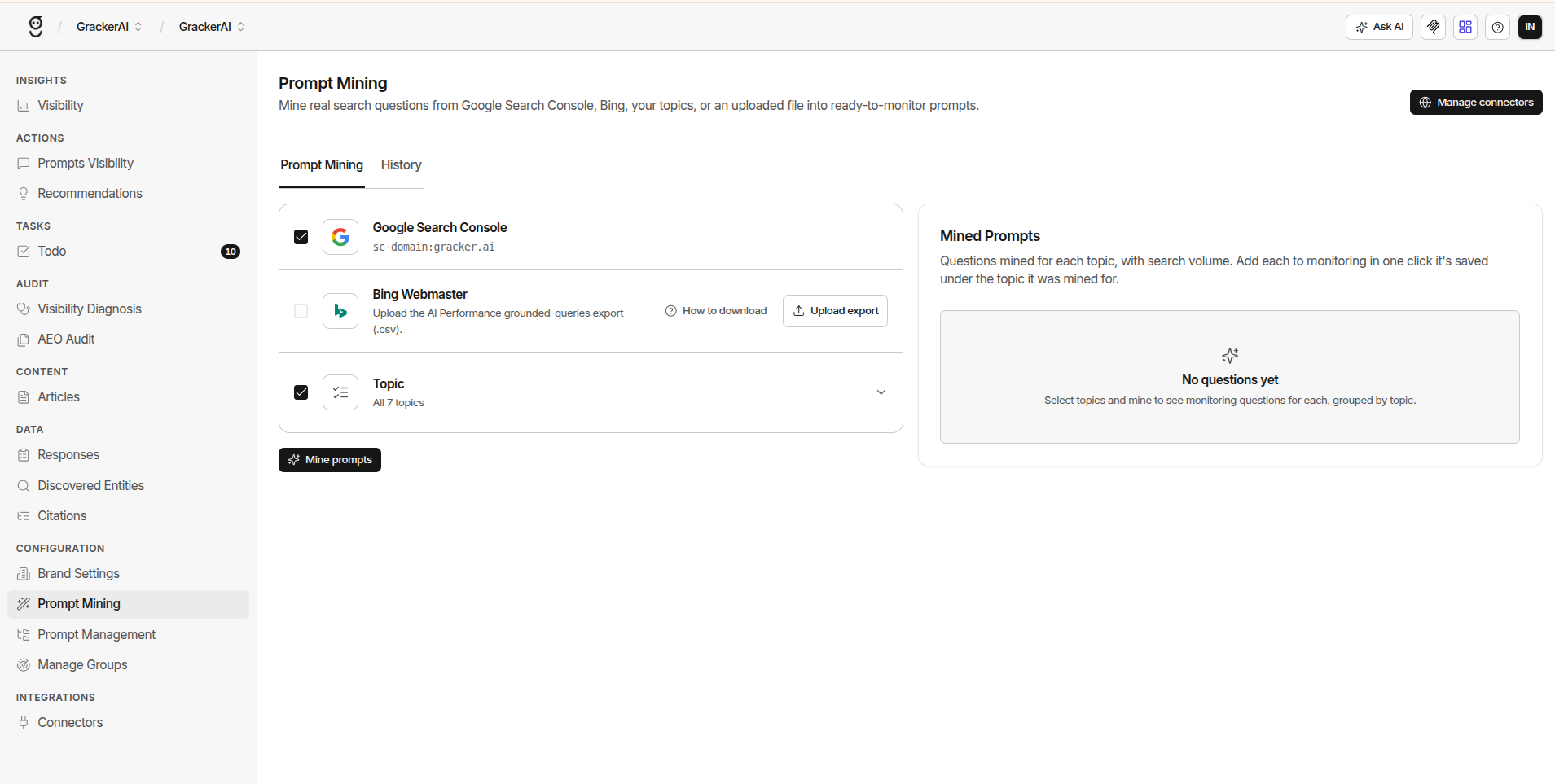
Prompt Mining is available on paid plans, and each plan has a cap on how many mined prompts it can generate.
The Three Sources
Go to Configuration → Prompt Mining. The page has two tabs: Prompt Mining, where you run a job, and History, where everything ever mined lives. On the Prompt Mining tab you tick the sources to mine from - one or all three - and click Mine prompts. One run reads every ticked source at once.
A source you can't use yet is greyed out - GSC until the connector is connected, Bing until a file is uploaded, Topic until you have at least one topic. Mine prompts stays disabled until at least one source is ticked.
Setting Up Each Source
Google Search Console
Connect the site under Manage connectors (top right of the page, or Configuration → Connectors). Once connected, the row shows the site URL and is ticked by default. If Google's token expires, the row shows a Failed pill with "Google connection expired — reconnect Search Console" after the next run and a Reconnect button.
Bing Webmaster export
- Open Bing Webmaster Tools (opens in a new tab) and pick your site
- In the left sidebar click AI Performance
- Scroll down and click Download all grounded queries
- Back in GrackerAI, click Upload export on the Bing row and pick the file as-is
The How to download button on the row shows the same steps. Accepted formats are .csv, .xlsx, and .txt, up to 5 MB and 50,000 rows. The parser looks for a query column headed Query, Keyword, Grounding query, Prompt or similar, and picks up Clicks, Impressions (or Citations) and Position columns when present - those feed the volume estimate. Rows with an empty query cell are skipped and counted as warnings under the row.
One upload is kept per brand. Replace swaps it, Remove clears it. Uploads expire after a while - if a run reports "The uploaded file expired — upload it again", re-upload and run again.
Topic
Topics come from Prompt Management → Topics (see Managing Prompts). All topics are pre-selected; expand the row to tick a subset or Deselect all. System topics created by GrackerAI for CVE and news tracking are not offered here - they get their own prompts elsewhere.
For each selected topic GrackerAI:
- Searches the topic name in your brand's industry and collects People Also Ask questions, then the questions people also ask about those questions
- Collects forum threads (Reddit and similar) that match the strongest questions
- Keeps only what an AI model judges on-topic for your industry and what your brand does
- Rewrites keyword fragments into full, natural questions (roughly 6–16 words) and drops truncated titles, bylines and error strings
Every prompt from this source is already filed under the topic it was mined for.
Running a Job
- Go to Configuration → Prompt Mining
- Tick the sources to mine from
- Click Mine prompts
- Wait - GSC and uploads finish in a minute or two; topic mining takes longer because it runs live searches per topic
- Review the Mined Prompts panel on the right
The job runs in the background. You can leave the page; if it's still running after half an hour the page tells you results will land in History when it finishes.
Each source row reports its own outcome after the run. A source that fails shows a Failed pill and the reason, but the run still completes with whatever the other sources produced. The job only fails outright when every ticked source failed.
The prompt language follows the brand's language setting. Queries in a different script are dropped before cleaning.
How Mined Prompts Are Cleaned
Raw search data is noisy. Between fetching and the list you see, every query goes through the same cleaning pipeline:
| Step | What it removes or does |
|---|---|
| Structural filters | URLs and search operators, pasted code, garbled text, hex-like junk, quote strings, and anything too short to be a real question. The minimum length relaxes automatically when a source is thin. |
| Brand and competitor names | Any query naming your brand, a sibling brand in the workspace, a competitor, or any of their domains and aliases. Those are brand lookups, not market questions. Common words that happen to be brand names ("cloud", "security", "hub") are never blocked. |
| Exact and near duplicates | Queries that use the same words in a different order, or differ only by a year, are merged into one prompt - the newest wins. Queries with the same meaning in different words are merged by semantic similarity. Merged variants are kept on the prompt. |
| AI relevance check | An AI model judges each surviving query: is it a real question someone would ask an assistant, does it belong to your market, and is it a duplicate of another in the batch? Keyword labels and junk are dropped. When the model is unsure, it drops. |
| Topic assignment | GSC and Bing prompts are filed under the best-matching existing topic. Anything that fits none goes into an auto-created Miscellaneous topic. |
If the AI check itself errors on a batch, those prompts are kept and marked "review manually" rather than silently dropped.
Reading the Results
The Mined Prompts panel shows one row per prompt:
| Column | What It Shows |
|---|---|
| Prompt | The cleaned question text. Hover for the full text |
| Topic | The topic it's filed under |
| Volume | Estimated monthly search demand, sortable. For GSC and Bing rows it's estimated from the impressions and average position in your data; for topic rows it reflects how prominently and how often the question surfaced. Shows — when there's nothing to estimate from |
| Add | Opens the monitor-group picker and adds the prompt under its topic |
Filter by topic with the dropdown above the table. Ten rows per page.
Each mined prompt also carries an intent tag when it lands in your library - informational, commercial, comparison, navigational, or transactional - inferred from what kind of query it was. You can override it in Prompt Management.
Reviewing and Adding
Each mined prompt is a candidate - it doesn't enter your library until you add it.
| Action | When to Use It |
|---|---|
| Add | The prompt is relevant and well-formed - pick a monitor group and it's saved under its topic |
| Add, then edit | Close but needs buyer context - add it, then refine the text in Prompt Management |
| Dismiss (History tab) | Too generic, off-market, or already covered |
Adding a prompt checks your plan's prompt limit first. If you're at the limit, upgrade before adding more.
Judging Prompt Quality
| Quality | Example | Action |
|---|---|---|
| Too generic | "Best EDR tools" | Dismiss, or add and rewrite with buyer context |
| Good starting point | "Best EDR tools for healthcare" | Add and edit to add specificity |
| Strong as-is | "What's the best EDR for a 500-person healthcare SaaS with HIPAA compliance running on AWS?" | Add to a group immediately |
History
The History tab lists every prompt mined for this brand - saved, added, and dismissed alike. From here you can:
- Search by text and filter by topic
- Tick several rows and Add N to Monitoring in one go, or Dismiss them
- Add a single row with the + button
- Sort by Volume when the rows carry one
Prompt Diagnosis uses the same topic-mining engine to suggest prompts for the intents your set is thin on - those suggestions appear on the diagnosis report, not here.