Tasks
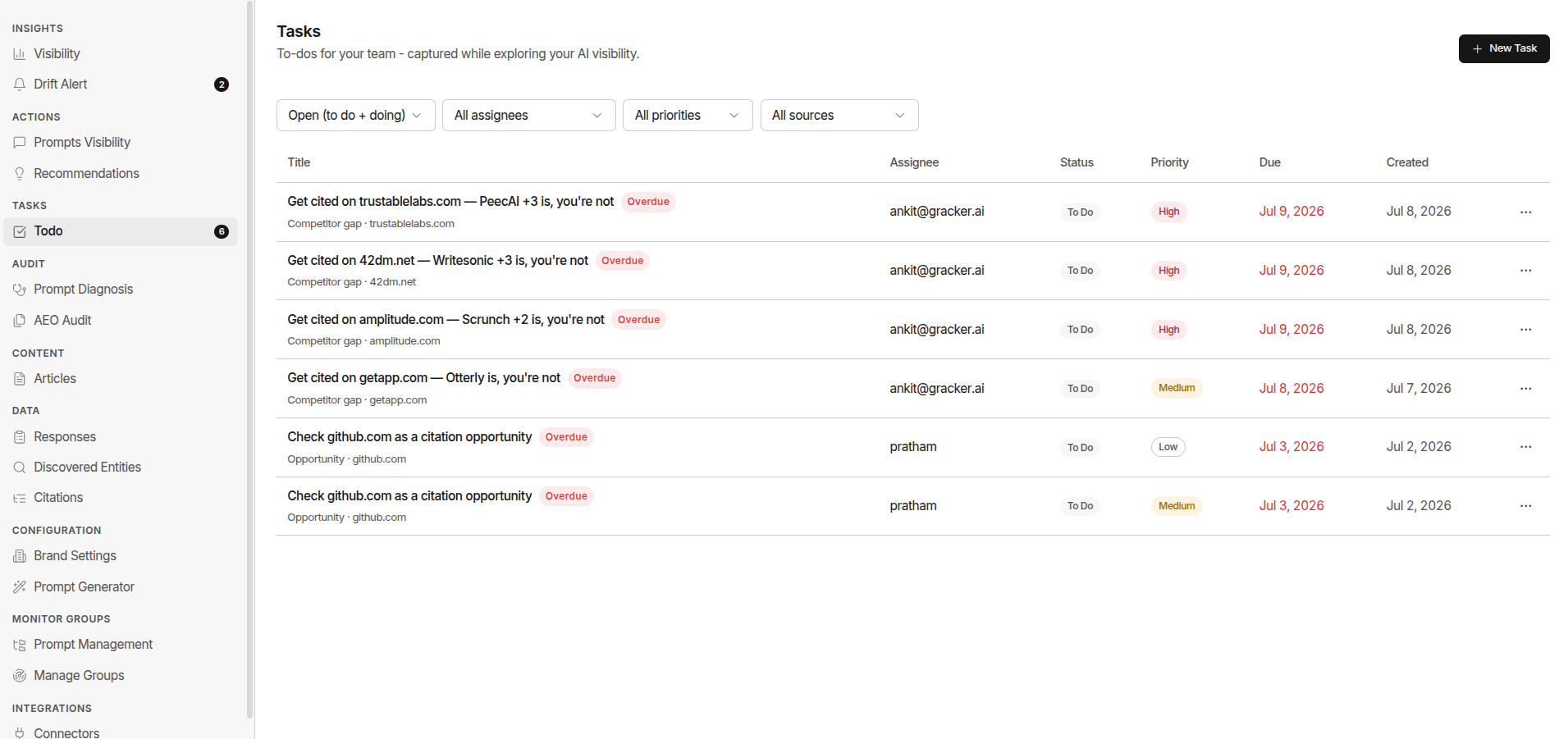
Tasks are your team’s to-do list for acting on everything GrackerAI finds - captured while you’re exploring your AI visibility data, or added manually.
Where to Find It
Go to Tasks → Todo in the sidebar. A badge shows your count of open tasks (To Do + In Progress).
Creating a Task
Two ways to add one:
- Manually - click New Task on the Tasks page and fill in a title, assignee, priority, and due date.
- From a “+task” action - while reviewing a citation, alert, recommendation, prompt, response, or discovered entity elsewhere in the product, add a task directly from that row. It carries the source context with it (e.g. which domain or competitor it relates to), so you don’t lose that detail on the way to your to-do list.
Task Fields
| Field | What It Means | |---|---| | Title | What needs to be done | | Assignee | Which team member owns it, or unassigned | | Status | To Do, In Progress, or Done | | Priority | Low, Medium, or High | | Due Date | When it’s due - overdue tasks are flagged in the list | | Source | Where it came from: Manual, or auto-tagged from Citations, Alerts, Recommendations, Prompts, Responses, or Discovered Entities |
Tasks created from elsewhere in the product keep a specific source type - for example a citation-sourced task is tagged as a competitor gap, a shared source, competitor content, a Reddit engagement opportunity, an owned page, a brand mention, or a general opportunity, so you know exactly what prompted it without leaving the Tasks list.
Filtering
Filter your task list by:
- Status - Open (To Do + In Progress) is the default view, or narrow to a single status, or see All
- Assignee - all, just yours, or a specific team member
- Priority - Low, Medium, or High
- Source - narrow to tasks that came from one area (e.g. only Citations-sourced tasks)
- Domain / Source Type - when filtered to Citations, narrow further by the specific domain or source type involved
Working a Task
Click any row to open it and edit its details. From the row’s action menu you can also:
- Mark done - closes it out without opening the editor
- Edit - opens the full editor
- Remove - archives it (destructive - use for tasks you no longer need, not for completed ones)
Common Workflows
Weekly Task Triage (10 min)
- Filter to Open, sorted by due date
- Clear anything overdue first
- Reassign anything unassigned to the right owner
Turning a Finding Into Action
- While reviewing a citation gap, alert, or discovered entity, use the row’s +task action instead of just noting it mentally
- Assign it and set a priority so it doesn’t get lost
- Check back in Tasks during your weekly triage