Competitors
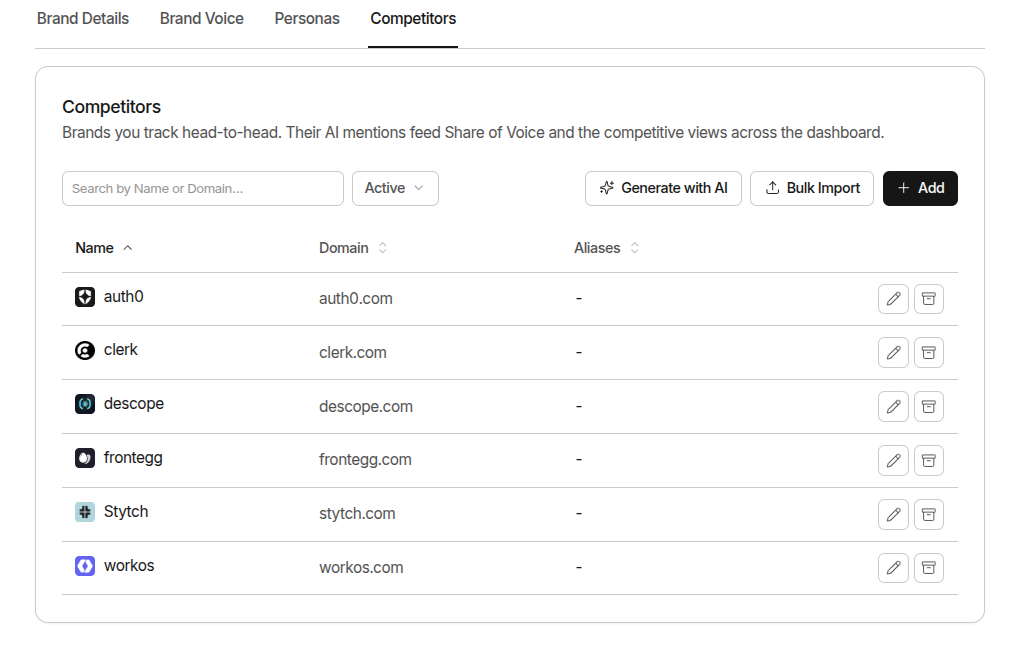
Competitors tell GrackerAI which other brands to watch for in AI responses. When a competitor is tracked, GrackerAI records every time they’re mentioned. in which prompts, on which surfaces, and in what position relative to your brand.
Where to Find It
Go to Configuration → Brand Settings → Competitors tab.
What Competitor Tracking Gives You
- Share of voice. how often each competitor appears vs your brand across your prompt library
- Head-to-head comparisons. side-by-side visibility on the same prompts
- Discovered entities. unknown brands that appear in AI responses can be promoted to tracked competitors
- Competitor citation sources. which URLs AI surfaces are pulling to support competitor mentions
Adding a Competitor
- Go to Configuration → Brand Settings → Competitors tab
- Click Add
- Enter the name, domain, and any aliases
- Click Save
Fields:
- Name: The competitor’s brand name, used for mention detection
- Domain: Their primary domain, e.g.
competitor.com(nohttps://or trailing paths) - Aliases: Alternative names AI surfaces might use for this competitor
- Additional Domains: Other domains they own that AI might cite
Fill with Gracker Agent
Click Fill with Gracker Agent and GrackerAI analyses your brand context to suggest competitor candidates - review, edit, and keep the ones that are real rivals. The fastest way to seed a competitor list on a new brand.
Bulk Import
- Click Bulk Import
- Paste one competitor per line - columns separated by tabs (or 2+ spaces), in this order:
name,domain, then optionalaliasesandadditional domains(comma- or pipe-separated) - In a multi-product workspace the second column is the required
company(parent company), so the order becomesname,company,domain, … - GrackerAI validates each row and flags duplicates before importing
Editing and Archiving
To edit: Click the edit icon on any competitor row, update fields, and save.
To archive: Click the archive icon on the row and confirm. Archiving preserves all historical data. the competitor no longer appears in active analytics but can be restored at any time.
To restore: Switch the list filter to Archived, find the competitor, and click Restore.
How Many Should You Track?
Start with your top 3–5 direct competitors. Add more as you discover unfamiliar brands appearing in your AI responses via Discovered Entities. You can promote any entity directly to a tracked competitor from there, no manual entry needed.