Personas
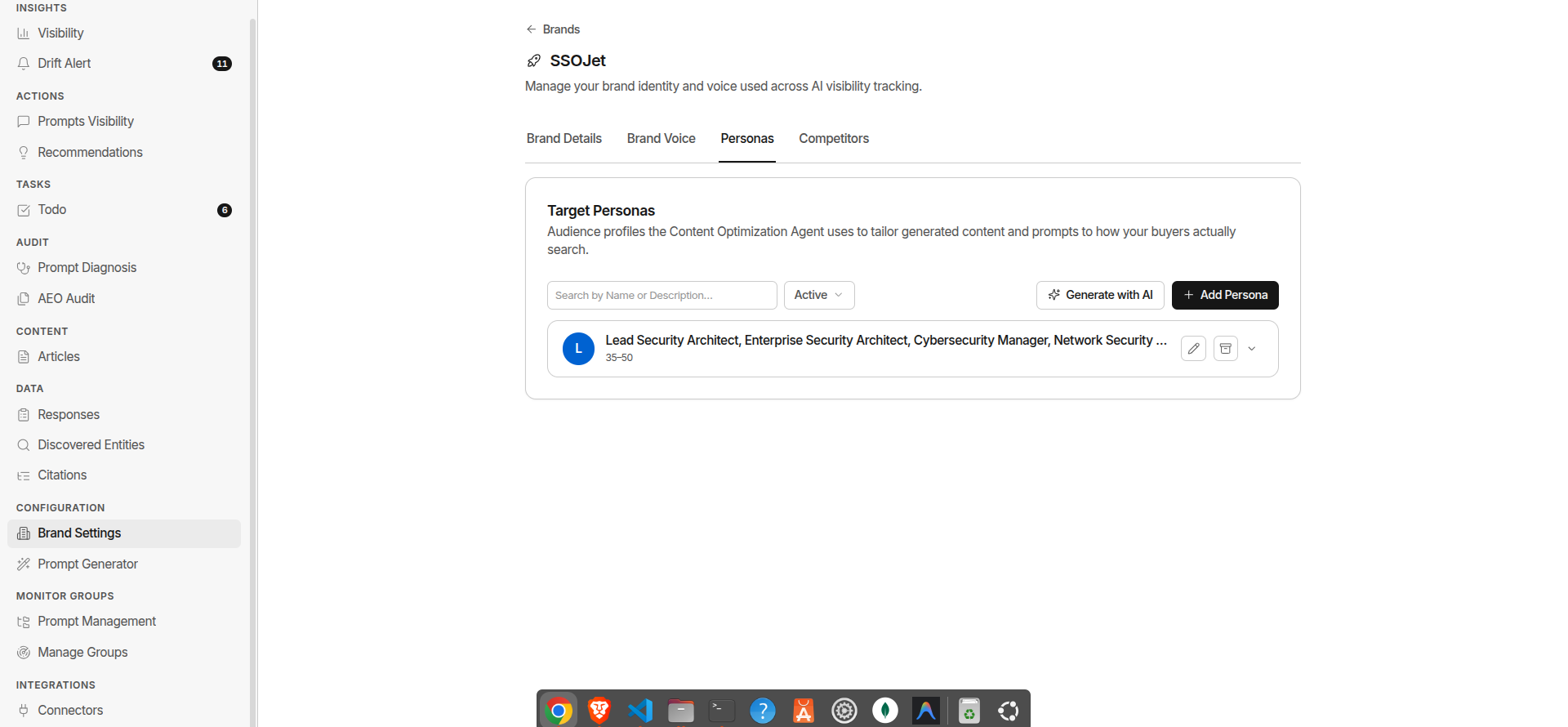
A persona represents the type of buyer who would ask one of your monitored prompts. GrackerAI uses personas to filter analytics by audience segment and to ground content generation in real buyer context.
Where to Find It
Go to Configuration → Brand Settings → Personas tab.
Why Personas Matter
The same product is researched differently by a CISO vs a SOC analyst, or by a CFO vs a product manager. When you assign a persona to a monitor group, you can filter visibility data by buyer role, generate content pitched at the right person, and identify which buyer types you’re winning or losing in AI responses.
Creating a Persona
Manually:
- Go to Configuration → Brand Settings → Personas tab
- Click + Add Persona
- Fill in the fields and click Save
With Gracker Agent:
- Click Fill with Gracker Agent
- GrackerAI analyses your brand context and suggests candidate personas
- Review each one, edit or discard as needed, and save the ones you want to keep
Persona Fields
| Field | What It Does | |---|---| | Job Titles | The roles this persona holds, e.g. “Head of Security”, “VP Engineering” | | Age Range | Approximate age bracket, helps calibrate language and references | | Description | Who this person is, what they care about, and how they make decisions | | Pain Points | The frustrations or challenges this persona is trying to solve | | Goals | What success looks like for this persona |
Assigning Personas to Monitor Groups
Once created, personas are available in the monitor group setup. Assign the persona who would realistically type the prompts in that group. See Monitor Groups for details.
Archiving a Persona
Archive personas for roles that are no longer relevant to your targeting.
To archive: Click the archive icon on the persona row.
To restore: Switch filter to Archived and click Restore.
Archived personas are removed from active monitor group selection but their historical data is retained.