Prompt Diagnosis
Prompt Diagnosis checks every active prompt in your brand at once and tells you what to do with each one: keep tracking it, fix it, or drop it. It answers "is my prompt set actually worth monitoring?" - before you spend monitor runs on prompts that can never show you anything.
What it checks
Every active prompt is scored 0-100 on three signals and matched against the rest of your set for duplicates:
| Signal | What it means | Flagged when |
|---|---|---|
| Clarity | Can an AI tell exactly what you're asking? Vague prompts return noise | below 40 |
| Topic relevance | Does the prompt fit the topic it's filed under? | below 40 |
| Commercial value | How likely an AI answer to this prompt names brands or vendors at all. A prompt with no buying intent can never reveal your visibility | below 40 |
| Search demand | Estimated monthly searches, matched from your own Google Search Console / Bing Webmaster queries | below 20/month |
| Duplication | Word-for-word matches, plus near-duplicates by semantic similarity | exact match, or similarity ≥ 0.95 |
Search demand needs a connector. With no connector - or no query that matched the prompt - the volume shows as n/a, never as 0, and the prompt is never flagged for low demand on missing data.
Running a diagnosis
- Go to Monitor Groups → Prompt Management.
- Open the ⋮ menu → Prompt Diagnosis Options → Run diagnosis. The run starts in the background - you can leave the page.
- When it finishes, GrackerAI generates prompt suggestions for the intents you're thin on, then notifies you that the report is ready.
- Come back to the same menu and click View diagnosis report. Re-run diagnosis sits next to it, and on the report header itself.
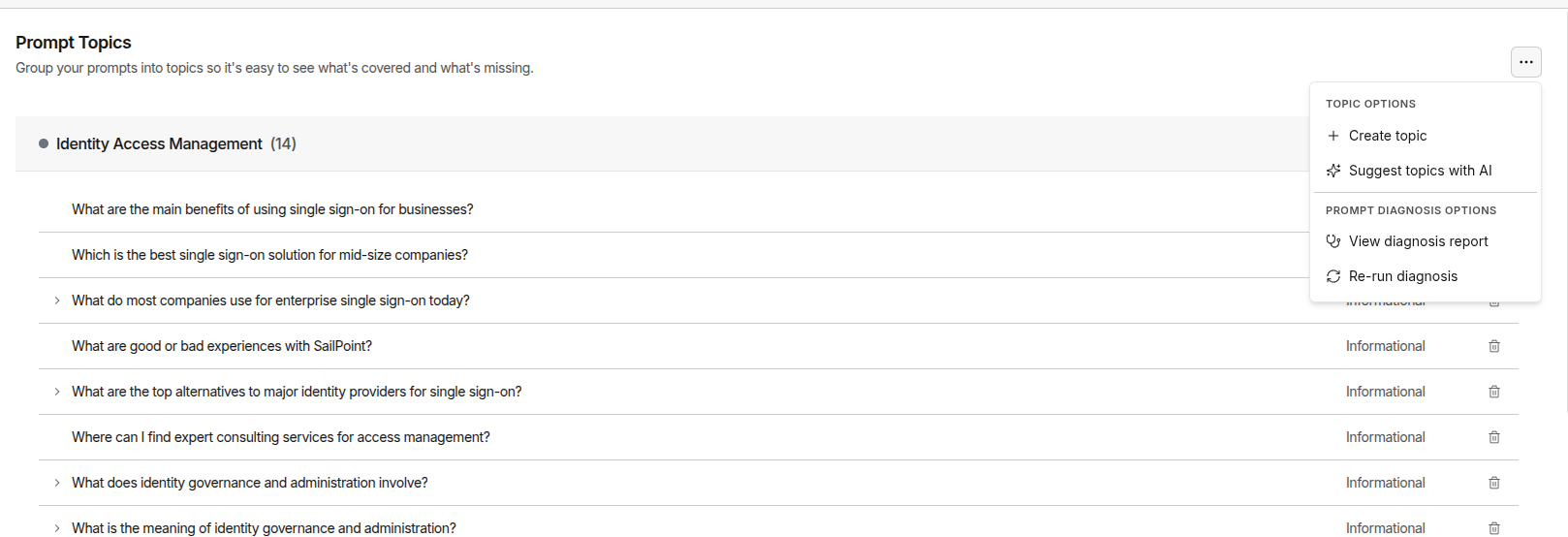
While a run is in flight the menu item is disabled and shows the phase - Running diagnosis…, then Finishing…. Both phases must complete before the report opens: the prompts are analysed first, then the suggestions are generated.
Reading the report
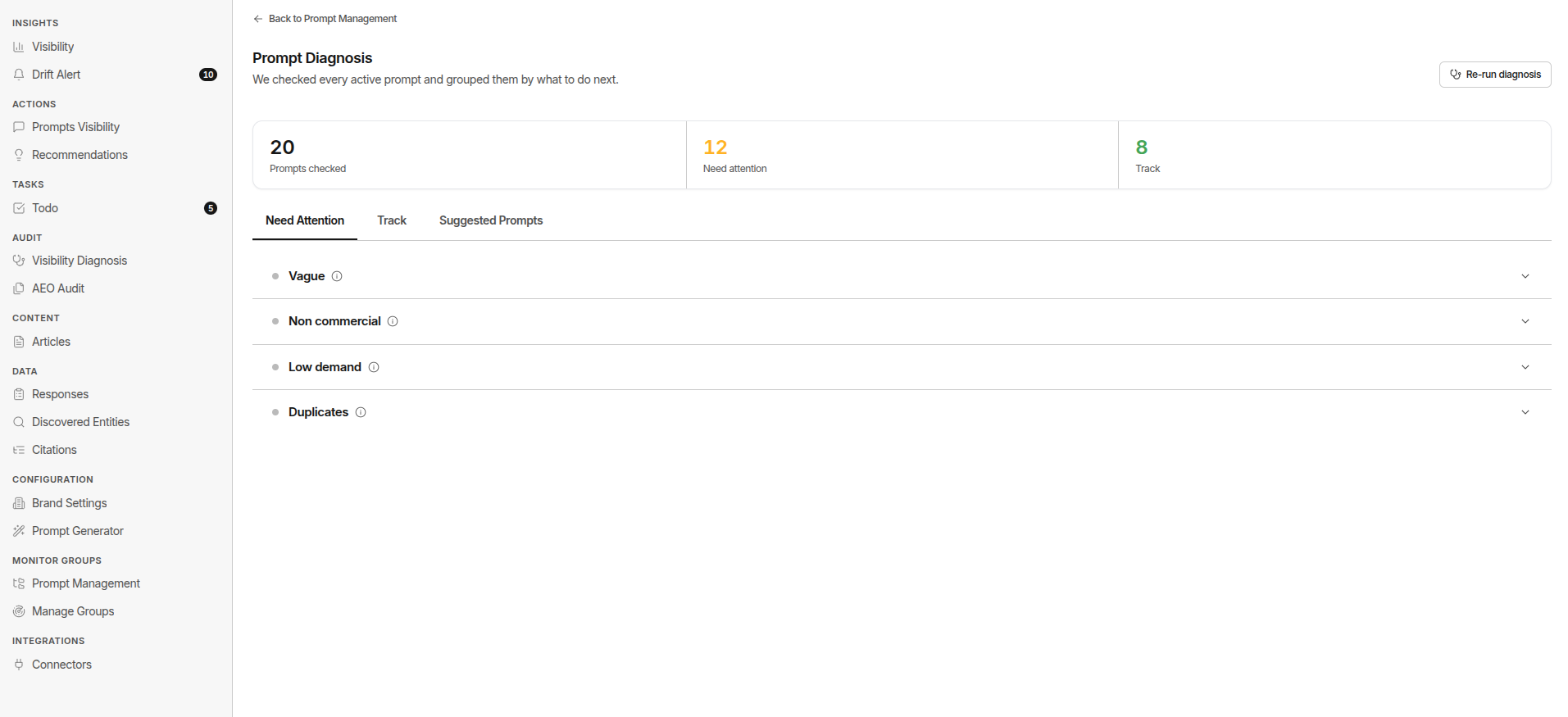
Three tiles at the top: Prompts checked, Need attention, Track. Below them, three tabs.
Need Attention
Flagged prompts, grouped by the problem, in this order:
| Group | Why it's flagged | What to do |
|---|---|---|
| Vague | Unclear or underspecified - an AI can't tell what you're asking | Rewrite with the specifics (segment, use case, constraint) |
| Off-topic | Doesn't fit the topic it's filed under | Move to topic, or archive |
| Non commercial | No buying intent - the person isn't comparing, choosing, or buying a product | Archive, or rewrite it toward a purchase decision |
| Low demand | Very low monthly search volume - hardly anyone asks this | Archive, or keep it if it's strategically important to you |
| Duplicates | Overlaps a prompt you already track, so it double-counts | Archive duplicate - the row names the prompt it duplicates |
A prompt appears in exactly one group. Duplicates and hard rejects go straight to their group; anything else that trips more than one borderline bar is filed under the most damaging one first - non commercial, then low demand, then vague, then off-topic.
Groups start collapsed - click one to open its table. A group with no prompts in it isn't shown at all, so an empty Off-topic section means nothing is filed under the wrong topic.
Each row shows the plain-language reason and the score behind it - the topic for Off-topic, the commercial score for Non commercial, the volume for Low demand. You can also send any row to Tasks.
Track
Prompts that came back clear, on-topic, commercially meaningful, and not already covered. Nothing to do - these are your working set. This table shows all four numbers side by side (clarity, topic fit, commercial, volume), sortable, so you can still rank your good prompts against each other.
Suggested Prompts
New prompts GrackerAI generated to fill the intents your set is thin on, each with its topic and search demand where known. Add puts one into a topic (the suggestion's own topic is pre-selected but changeable); dismissing removes it for good.
Acting on the results
Every verdict is advisory. Nothing is archived, merged, or added automatically - archiving always asks you to confirm first, and the dialog repeats the prompt text and the reason.
| Verdict | Button | Effect |
|---|---|---|
| Track it | - | Prompt stays as-is |
| Merge | Archive duplicate | Archives this prompt; the one it duplicates keeps running |
| Not recommended | Archive | Archives the prompt - excluded from monitor runs and analytics |
Archived prompts can always be restored from Prompt Management.
Limits & gotchas
- A brand run checks up to 500 active prompts. Past that the report shows a Partial badge and names how many were checked.
- Thresholds are deliberately conservative - a rejection tells you to delete your own work, so borderline prompts surface for a look rather than a hard reject.
- A missing signal never counts against a prompt.
n/ameans "we couldn't measure this", not "zero". - The report renders from the run's stored snapshot. Editing prompts afterwards doesn't change it - re-run the diagnosis to see the effect.
- Runs from before the current report format may show counts without per-prompt rows. Re-diagnose to rebuild the full table.
Where Prompt Diagnosis fits
Prompt Diagnosis is the health check on the input to everything else. A weak prompt set makes every downstream score less meaningful.
- Building the set? Prompt Mining creates prompts; Prompt Diagnosis grades what you ended up with.
- Set is clean? Then a low Visibility Score is a real content problem - take a losing prompt into Visibility Diagnosis.
- Reorganising? Off-topic flags are the fastest way to sort prompts into the right topics.