Responses
Every time one of your prompts runs, GrackerAI captures the full AI response - the text, every brand mentioned, every source cited, and the sentiment. The Responses page is where you read what AI surfaces are actually saying.
The Responses List
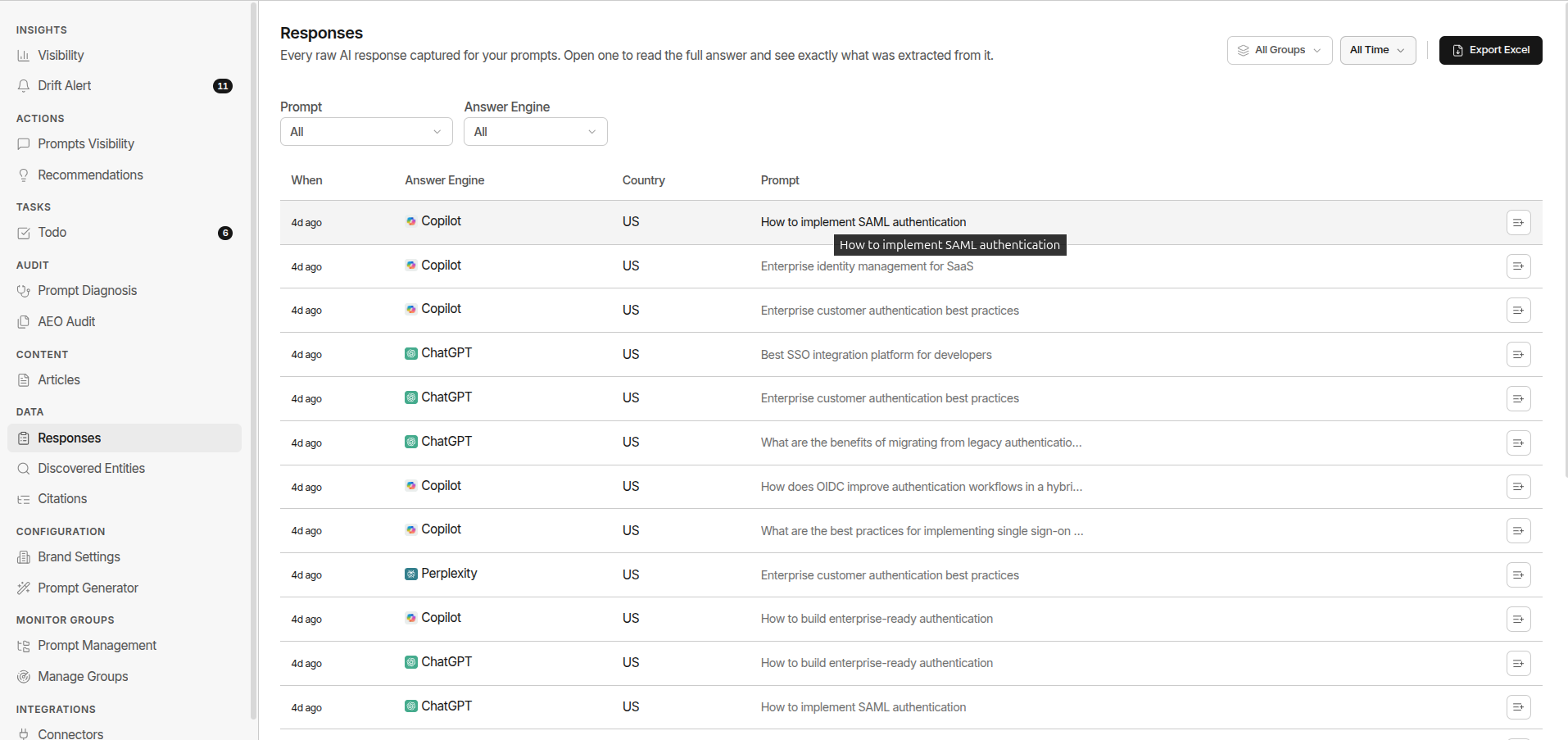
Each item in the list is one captured AI response: one prompt, one surface, one moment in time.
| Column | What It Shows | |---|---| | When | When the response was captured | | Answer Engine | Which AI platform produced this response | | Country | The country the prompt was run from | | Prompt | The prompt question that triggered this response |
Click any row to open the full response.
Reading a Response
Opening a response shows a detail panel organised into tabs:
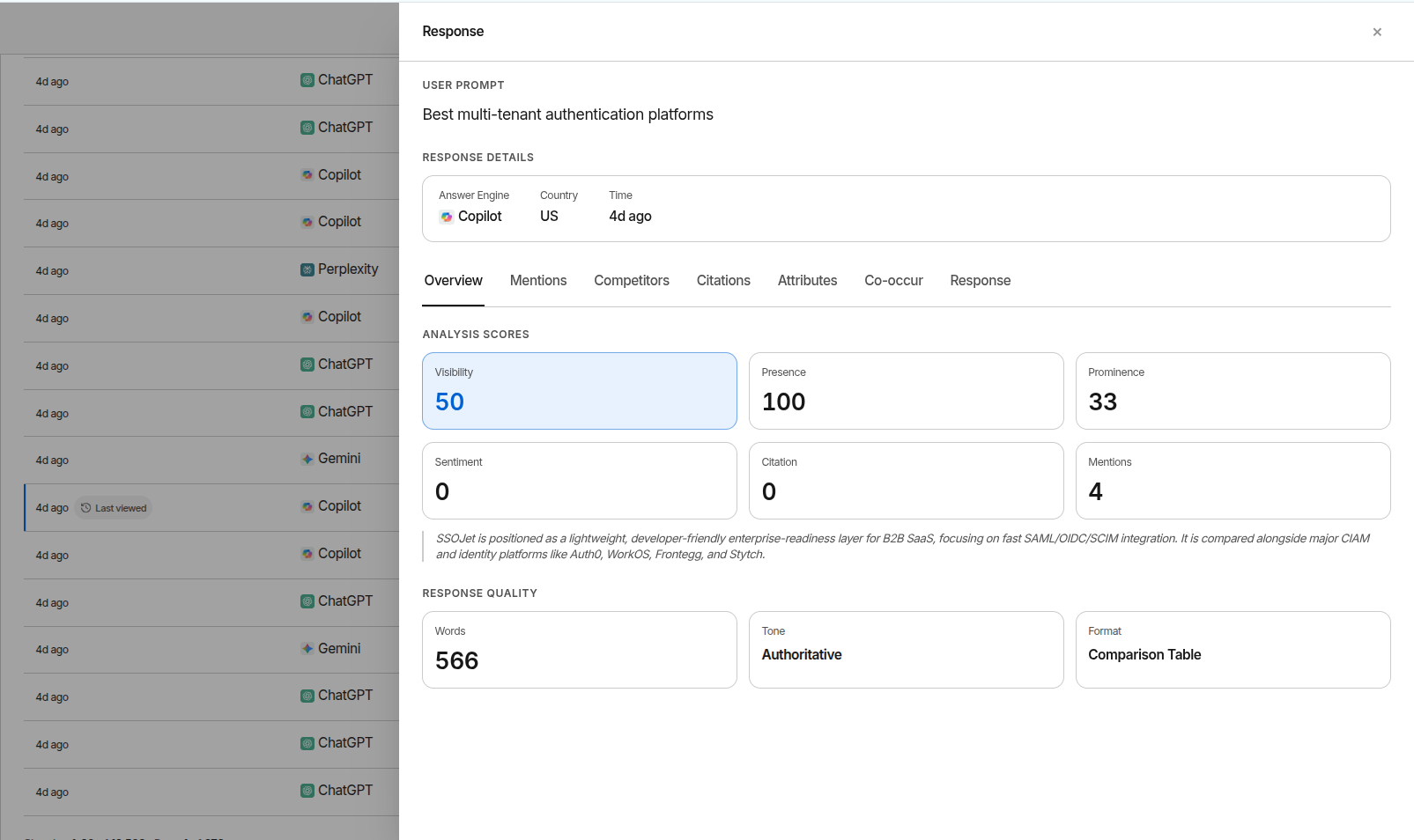
- Overview - the analysis scores for this single response (Visibility, Presence, Prominence, Sentiment, Citation, Mentions) plus response-quality facts like word count, tone, and format
- Mentions - every brand the AI referenced, how prominently, and the source citations supporting each mention
- Competitors - how each entity is positioned: role, factual accuracy, and citation support
- Citations - every source domain cited, with URL and position
- Attributes - descriptive labels the AI attached to each entity (e.g. “enterprise-grade”, “complex to deploy”)
- Co-occur - pairs of entities that appeared together and how they were related
- Response - the full AI-generated text exactly as produced, as rendered content
What 0% Visibility Means
A response showing 0% visibility means the AI answered the prompt but did not consider your brand relevant enough to mention.
This is your highest-priority signal. A 0% on a commercial-intent prompt where competitors appear means the AI sees your category but not you. That is a content gap, not a product gap.
AI Surfaces
GrackerAI captures responses from 9 AI platforms:
Filters
- Prompt - show responses for a single prompt
- Answer Engine - audit one AI platform at a time
To scope to a monitor group, use the monitor-group selector in the page header - it applies across the whole page, not just this table.
Exporting Responses
Click Export Excel in the top right to download your filtered response list as an XLSX file. The export includes only the rows currently visible after your filters are applied.
High-value export uses:
- Content gap analysis: export 0% visibility responses on commercial prompts, hand to content team as a prioritised backlog
- Competitor intelligence: export responses where a specific competitor appears
- Sentiment audit: export low-sentiment responses, share with customer success or product team
- Leadership reporting: quarterly visibility by surface
Common Workflows
Weekly Gap Analysis (15 min)
- Filter by Monitor Group to your category prompts
- Open responses where Visibility is 0%
- Read 5–10 responses and note which brands and domains are cited
- Hand patterns to your content team as the week’s priorities
Competitor Intelligence Sweep (30 min)
- Filter by Monitor Group to a competitor group
- Read the 20 most recent responses
- Note how AI describes their differentiators, which sources are cited, which use cases they’re winning
- Share findings with sales and product teams
Sentiment Audit (15 min, monthly)
- Open responses and look for low Sentiment scores in the panel
- Read the full response text for low-sentiment results
- Identify the content source feeding the negative framing
- Either request a correction or counter with new authoritative content