Brand Management
A brand is the core entity in GrackerAI. Everything. monitor groups, prompts, competitors, personas, and analytics. is scoped to a brand.
What Is a Brand?
A brand represents one product, company, or product line you’re tracking AI visibility for.
| Workspace Type | Best For | |---|---| | Multi-brand | Agencies or companies with multiple independent clients or products | | Multi-product | One company tracking multiple products under a single parent company |
See Workspace Management to switch workspace types.
Creating a Brand
- Open your Brands list
- Click New brand (labelled New product in a multi-product workspace)
- This launches the brand onboarding wizard - it analyses your domain, then walks you through personas, competitors, and prompts
- Finish the wizard and the brand is live with monitoring ready to go
Brand Fields
| Field | Required | What It Does |
|---|---|---|
| Brand Name | ✅ | The primary name GrackerAI uses to detect mentions in AI responses |
| Domain | ✅ | Your main website domain. hostname only, e.g. example.com. used to detect citations |
| Short Description |. | One or two sentences on what your brand does. used in content generation |
| Description |. | Full brand overview. used by AI tools when generating content or prompts |
| Aliases |. | Alternative names or spellings AI might use. one per line |
| Additional Domains |. | Other domains you own that AI might cite. subdomains, microsites, acquired brands |
Editing a Brand
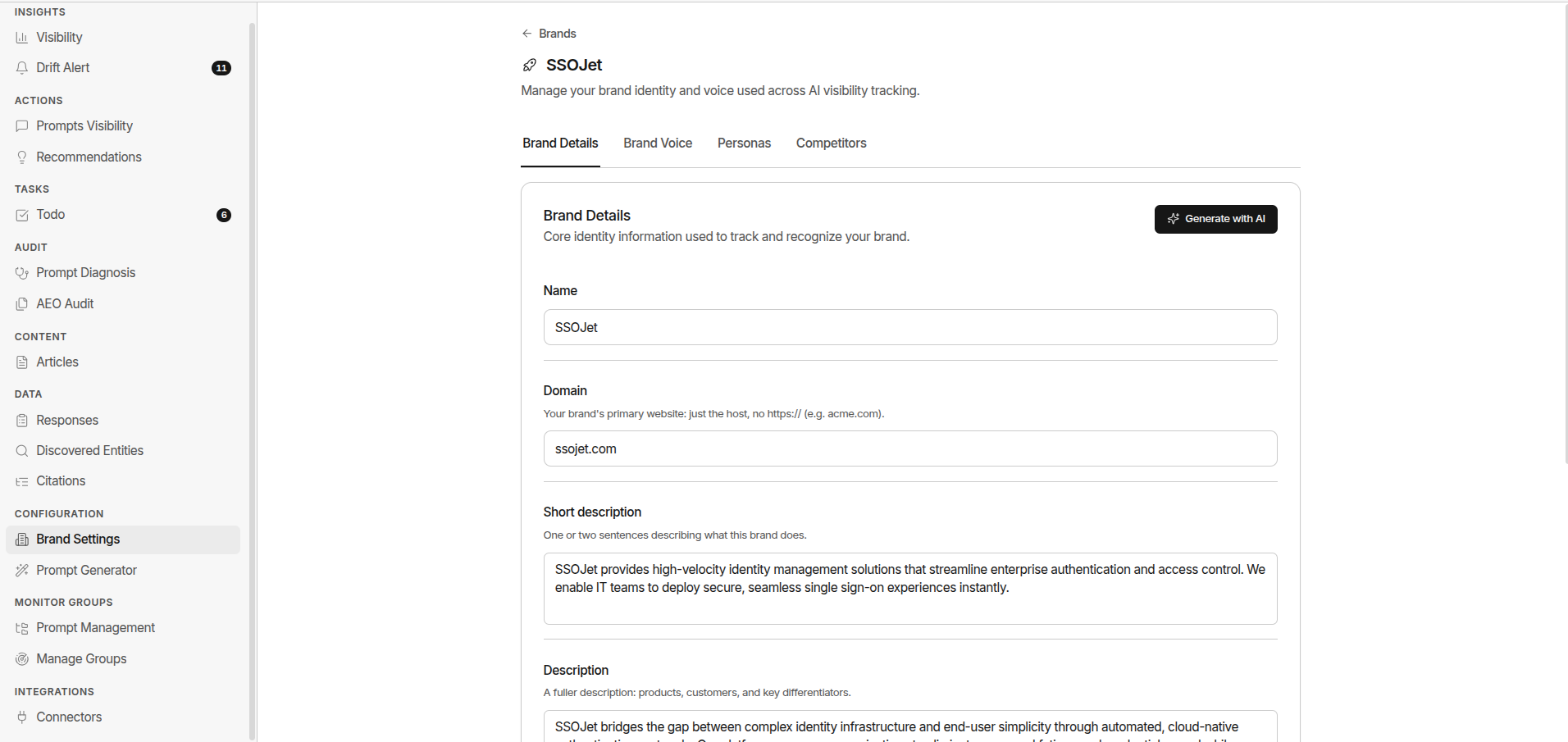
- Go to Configuration → Brand Settings
- Open the Brand Details tab
- Update any field and save
Archiving a Brand
Archive a brand when it’s no longer active. without losing any historical data.
When to archive:
- You’ve discontinued a product line
- You’re temporarily pausing tracking
- You’ve acquired a competitor and no longer track them separately
To archive: In the Brands list, click the Archive icon on the brand’s row and confirm. You can’t archive your only active brand - a workspace always keeps at least one.
To restore: In the Brands list, switch filter to Archived → click Restore