Managing Prompts
Prompts are the questions GrackerAI sends to AI surfaces on your behalf. Each prompt is a real question your buyers might ask: “What’s the best EDR for healthcare?” or “Splunk vs Sentinel for SOC teams?” Every monitor run records how AI surfaces respond to it.
Every prompt lives in a topic - a named theme like “Pricing”, “Compliance”, or “Alternatives” - and in at least one monitor group that schedules it. GrackerAI has two prompt pages with different purposes:
| Page | Where to Find It | What It Does | |---|---|---| | Prompt Management | Configuration → Prompt Management | Organise prompts into topics, add and import prompts, run Prompt Diagnosis | | Prompt Visibility | Actions → Prompts Visibility | Per-prompt visibility metrics, grouped by topic, with row actions |
Prompt Management
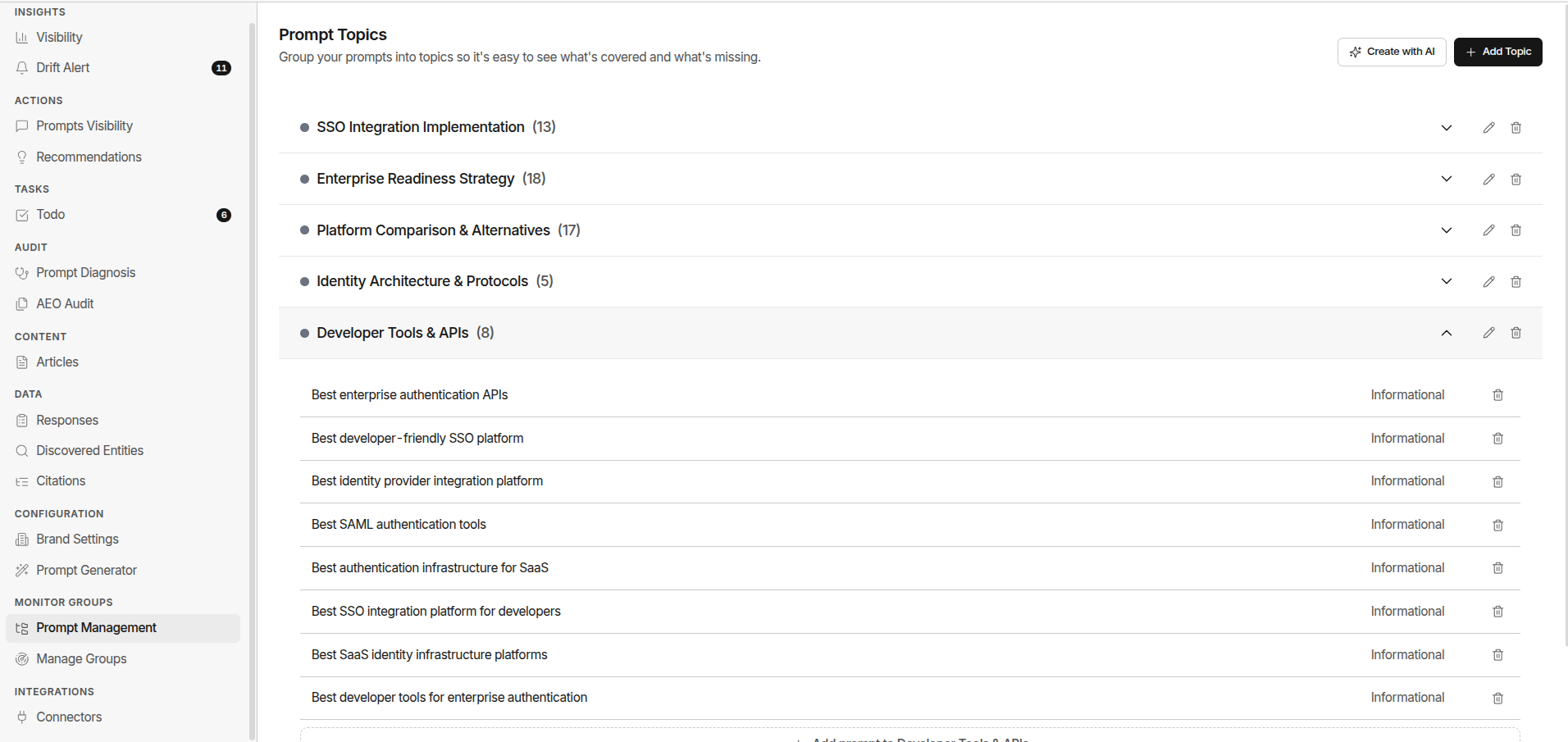
Go to Configuration → Prompt Management. The page is a list of your topics; open one to see the prompts filed under it.
Topics
Each topic row shows its colour, name, and prompt count. Click the row to expand it. The icons on the row:
| Icon | Action | |---|---| | Upload | Bulk import prompts into this topic | | Pencil | Rename the topic | | Trash | Delete the topic. Its prompts are not deleted - they move to Miscellaneous so you can re-file them later |
Miscellaneous is created automatically the first time you delete a topic that still holds prompts. It can’t be deleted itself.
Topic names must be unique within a brand.
Creating Topics
Open the ⋮ menu in the top right:
- Create topic - name it and save
- Suggest topics with Gracker Agent - GrackerAI reads your brand context and proposes up to five topics with a one-line description each, skipping names you already have. Untick the ones you don’t want, then save
Cybersecurity brands also get system topics for CVE and news tracking. GrackerAI creates and fills those itself; they appear in the list but are not offered to Prompt Mining.
Adding a Prompt
Expand a topic and click Add prompt to <topic>:
| Field | Notes | |---|---| | Topic | Pre-filled with the topic you opened; change it if needed | | Prompt | The question, exactly as a real user would type it. 3–2000 characters | | Monitor group | Required. A prompt with no group is never tracked | | Intent | Leave on Auto-detect to let the classifier decide, or pick one to set it manually |
GrackerAI rejects a prompt whose text matches an active prompt for this brand, ignoring case. Clean duplicates keep analytics honest.
Bulk Import
Click the Upload icon on a topic row. Paste one prompt per line into the box - blank lines are ignored. To set an intent on a row, add it after a Tab:
best crm for startups	transactional
top crm alternatives 2026	comparison
Pick a monitor group, then import. Up to 1,000 rows per import. Rows that fail validation are listed by row number with the reason; fix and re-import only those.
For a faster way to fill a topic with real buyer questions, use Prompt Mining - every mined prompt lands in its topic with volume and intent already attached.
Removing a Prompt
Click the Trash icon on a prompt row and confirm. The prompt is archived, pulled out of every monitor group it was in, and stops being tracked. A monitor group left with no prompts is archived too.
There is no inline edit on this page. To change a prompt’s wording, remove it and add the corrected version.
Searching and Filtering
Once you have topics, a search box and an Intent filter appear above the list. Both filter the prompt rows inside every topic; topics with no matching prompt are hidden while a filter is active.
Fan-out Queries
A prompt that has a finished Visibility Diagnosis shows a chevron. Click it to see the fan-out queries - the smaller questions an AI assistant breaks the prompt into when answering it.
Diagnosing Your Prompt Set
The ⋮ menu → Prompt Diagnosis Options checks every active prompt at once and groups them by what to do next - vague, off-topic, non-commercial, low demand, or duplicated - plus suggestions for the intents you’re thin on. See Prompt Diagnosis.
Intent Tags
Every prompt is tagged with one of eight intent categories. GrackerAI assigns this automatically when the prompt is created, or you set it yourself on the add form.
| Intent | What the Buyer Is Doing | |---|---| | Informational | Learning about a topic, category, or problem | | Comparison | Evaluating two or more specific tools side by side | | Alternatives | Looking for options to replace a tool they already use | | How-to | Trying to accomplish a specific task | | Troubleshooting | Solving a problem they’re already experiencing | | Recommendation | Asking for a direct “what should I use” answer | | Pricing | Evaluating cost before a purchase decision | | Transactional | Ready to buy or sign up |
Along with intent, auto-classification also records:
- Funnel Stage - Awareness, Consideration, or Decision
- Persona Signal - Developer, Marketer, Executive, or End User
- Topic tags - a few short keywords describing what the prompt is about
Classification runs the moment a prompt is saved. If the classifier is slow, the prompt is saved with a placeholder intent and classified in the background shortly after.
Prompt Visibility
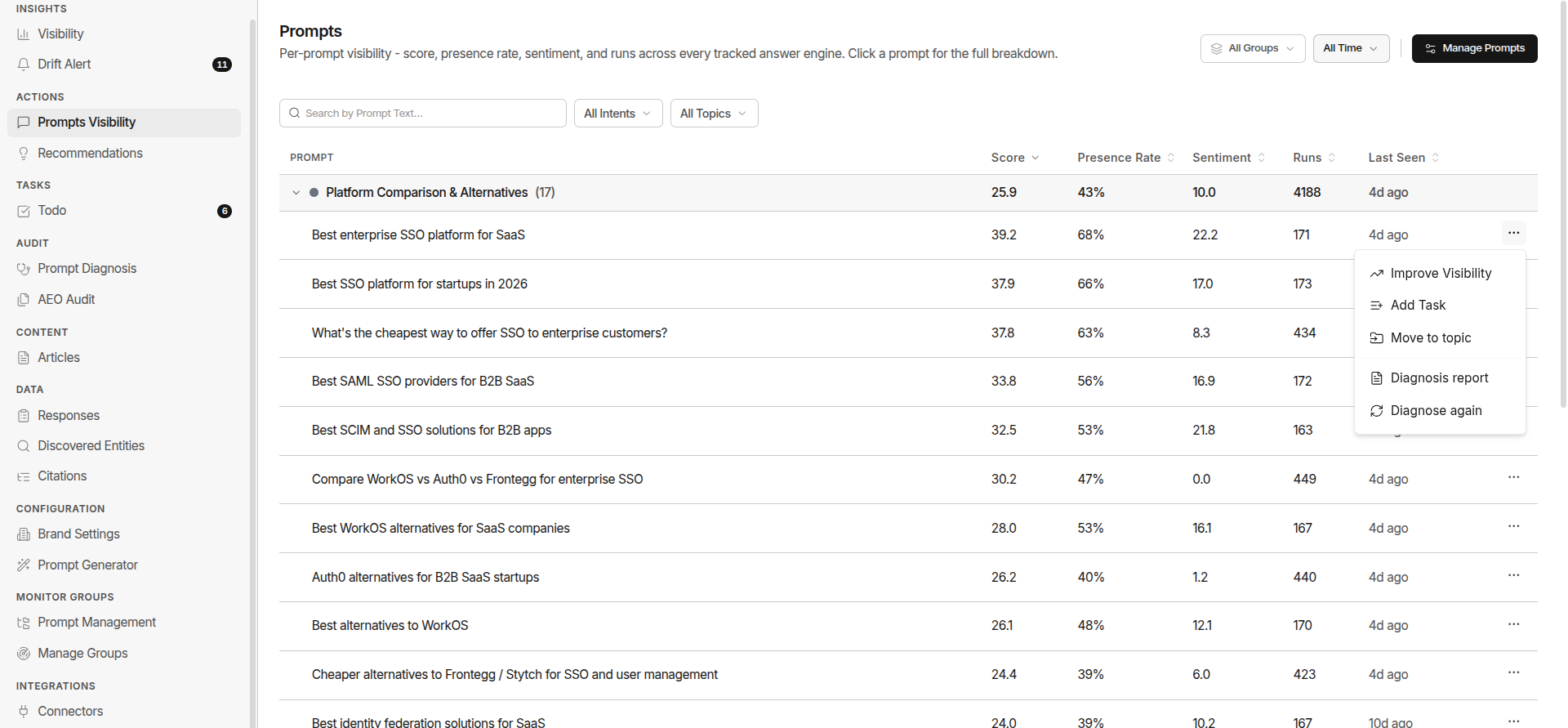
Go to Actions → Prompts Visibility to see how each prompt performs across every tracked answer engine.
The Table
Rows are grouped by topic. Each topic row shows the aggregate across its prompts and expands to the individual prompts inside it. Sorted by Score, highest first, by default; click any column header to re-sort.
| Column | What It Measures | |---|---| | Score | Visibility score for this prompt across all runs in the window | | Presence Rate | Percentage of runs where your brand was mentioned at least once | | Sentiment | Average sentiment across all responses for this prompt | | Runs | Number of times this prompt has been run | | Last Seen | When this prompt last produced a response |
The date window and monitor group come from the scope picker in the top bar, the same as every other analytics page.
Filters
- Search - filter by prompt text
- Tags - show only prompts carrying a workspace tag
- Topics - show a single topic, or Uncategorized for prompts with no topic
Row Actions
Click any prompt to open the Prompt Details drawer: performance metrics, visibility trend, competitors named in this prompt’s answers, and the recent responses.
The ⋮ menu on each row:
| Action | What It Does | |---|---| | Generate Content | Opens the content generator pre-loaded with this prompt - see Articles | | Add task | Sends the prompt and its numbers to Tasks | | Move to topic | Re-file the prompt under a different topic | | Diagnose Visibility | Finds out why this prompt isn’t citing you. Once a report exists the menu offers Diagnosis report and Diagnose again - see Visibility Diagnosis |
The Manage Prompts button in the header jumps to Prompt Management.
Writing Effective Prompts
Use Full Natural-Language Questions
AI users type full questions, not keywords. Write prompts the same way.
| Weak | Strong |
|---|---|
| Best EDR healthcare | What's the best EDR for a 500-person healthcare SaaS that needs HIPAA compliance and runs on AWS? |
| Datadog alternatives | What are cheaper alternatives to Datadog for a Series B startup with 50 engineers and a Kubernetes-heavy stack? |
| CRM B2B SaaS | What's the best CRM for a product-led B2B SaaS company with under 100 employees? |
Include Buyer Context
- Company size - “for a 200-person company”, “enterprise teams”
- Industry - “for healthcare”, “for fintech”
- Tech stack - “on AWS”, “with Kubernetes”
- Compliance requirements - “SOC 2 ready”, “HIPAA compliant”, “FedRAMP authorized”
- Urgency signal - “after a phishing attack”, “before SOC 2 audit”
Keep Brand Names Out
A prompt that names your brand or a competitor measures whether people look you up, not whether AI recommends you. Keep the library at the category level and let the responses tell you who gets named.