Team Management
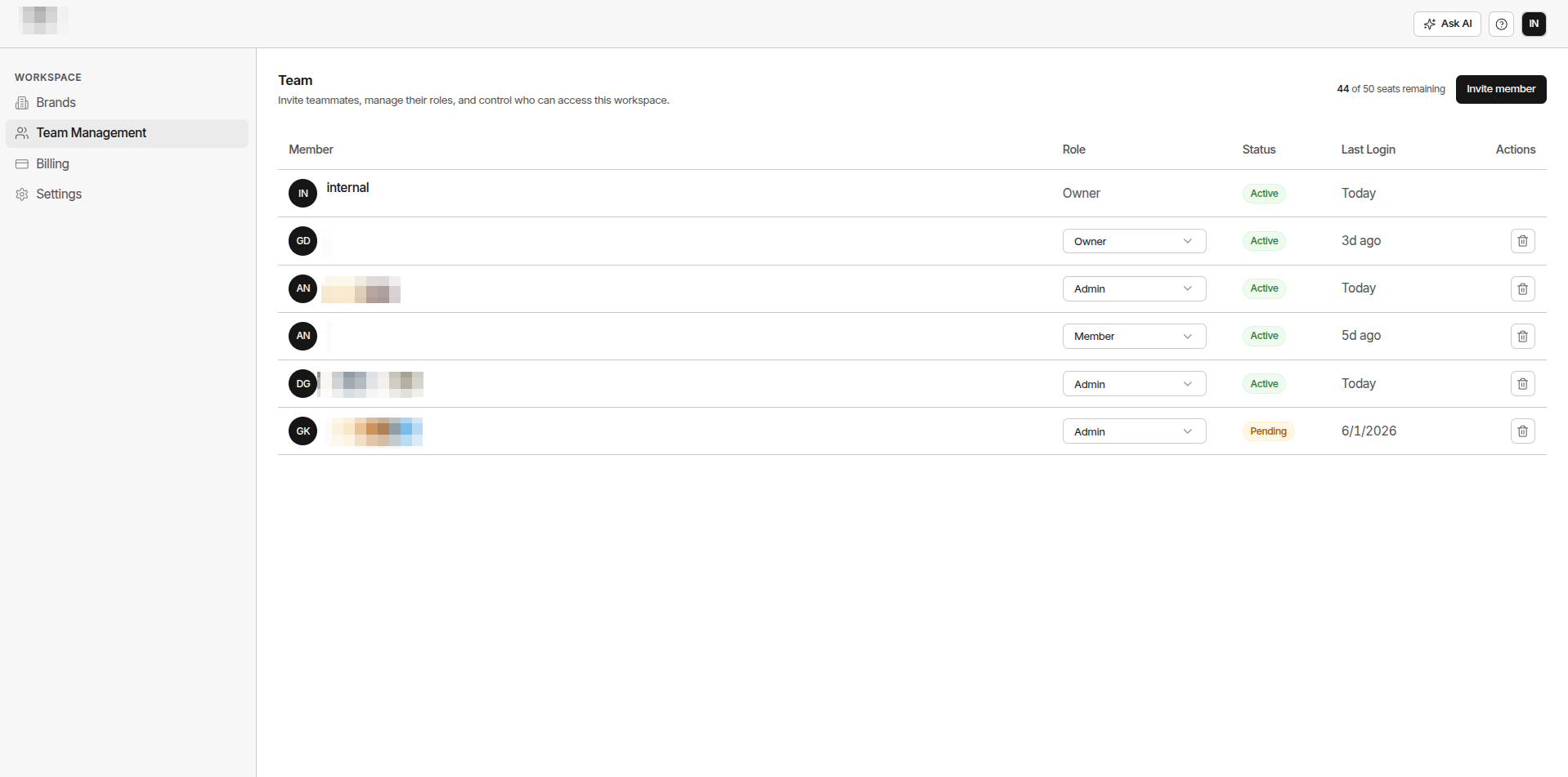
Manage your team at Manage Workspace → Team Management. Invite members, assign roles, and control who can access your workspace.
Roles
Every team member has one of three roles:
| Role | What They Can Do | |---|---| | Owner | Full workspace control - manage billing, invite and remove any member, change any role. Only an Owner can remove or reassign another Owner | | Admin | Privileged access - invite members, remove Members, change Member roles. Cannot change or remove Owner accounts | | Member | Standard access - use the workspace, view analytics, and work with brands and prompts. No team management access |
Invite a Team Member
- Go to Manage Workspace → Team Management
- Click Invite member
- Enter their email address
- Select their role (Owner, Admin, or Member)
- Click Send invitation
The invited person receives an email with a link to join. Their status shows as Pending until they accept.
Member Statuses
| Status | Meaning | |---|---| | Active | Member has accepted the invite and logged in | | Pending | Invitation sent - not yet accepted |
You can also see the Last Login timestamp for each member. It shows Never if the member has not logged in yet.
Change a Member’s Role
- Find the member in the team list
- Click the Role dropdown on their row
- Select the new role
- The change saves automatically - no confirmation needed
Only Owner and Admin accounts can edit roles. Owner roles can only be changed by another Owner.
Remove a Member
- Find the member in the team list
- Click the remove icon on their row
- Confirm the removal
Team Size Limits
Your plan determines the maximum number of seats:
| Plan | Team Members | |---|---| | Starter | 2 | | Scale | 5 | | Enterprise | 50 |