Articles
Articles creates full content pieces optimised to earn AI citations. Each piece is ready for your review once generation completes.
Four Content Types
GrackerAI generates four types of new content, plus an Optimize existing page mode for pages you already have (covered below).
| Type | Best For |
|---|---|
| News Article | Category news, industry updates, and trend coverage |
| Blog Post | Educational and problem-aware queries that reward depth |
| Listicle | Best-of and category queries where AI pulls from structured lists |
| Product Comparison | Evaluation queries where buyers compare you against competitors |
News Article
Timely news built from auto-discovered sources in your category. GrackerAI finds relevant source material, structures it as a publishable news piece, and cites the sources inline.
Example: A cybersecurity vendor publishes a weekly news roundup covering the latest threat intelligence and EDR industry updates - earning citations on time-sensitive queries.
Blog Post
A long-form article built to establish authority on a topic and earn AI citations.
Example: A B2B observability vendor generates "Complete Guide to Distributed Tracing in Kubernetes" to earn citations on developer-tool queries.
Listicle
A list-format article ("Best X for Y") designed to capture category and comparison queries where AI engines pull directly from structured lists.
Example: A cybersecurity vendor generates "Top 10 EDR Platforms for Healthcare in 2026" featuring themselves alongside honest comparisons.
Product Comparison
A side-by-side comparison of your product versus one or more competitors, structured to appear in AI responses when buyers are evaluating alternatives.
Example: A SaaS vendor generates "GrackerAI vs [Competitor]: Which AI Visibility Platform Is Right for You?" to capture comparison queries.
Content Optimisation
Takes a URL from your existing website and rewrites or improves it to perform better in AI responses.
| Level | What It Does |
|---|---|
| Conservative | Light edits, preserve existing structure |
| Balanced | Rewrite sections while preserving key structure |
| Full Rewrite | Rebuild content from scratch for maximum impact |
Example: Your product comparison page is being cited but your brand isn't being recommended from it. Content Optimisation rewrites it to improve how AI reads and recommends you.
Content Length
When generating new content, you choose the length:
| Length | Word Count | Best For |
|---|---|---|
| Short | 200 - 500 words | Quick reads, focused points |
| Medium | 500 - 1,000 words | Balanced coverage |
| Long | 1,000 - 3,000 words | Comprehensive deep-dives |
How to Use Articles Well
- Start with a real gap - use Content Gaps, Recommendations, or Responses to identify what to write before generating
- Choose the right type - listicles for category gaps, blog posts for educational gaps, product comparisons for evaluation queries, optimisation for underperforming indexed pages
- Generate the draft
- Edit aggressively - AI drafts are a 70% starting point. Add real customer examples, specific numbers, original opinions, and technical depth your competitors don't have
- Use the AI assistant - highlight any section and ask it to rewrite, expand, or adjust the tone
- Add images - upload images directly to attach to your content piece
- Publish and track - monitor the Citations page over the following 4-6 weeks to see if the new content earns placements
The AI Assistant
Inside the content editor, the AI Assistant lets you work with any section of the generated content:
| Action | What It Does |
|---|---|
| Rewrite | Rephrase a section with a different tone or angle |
| Expand | Add more depth or detail to a section |
| Adjust tone | Make a section more formal, more technical, or more conversational |
Viewing and Managing Content
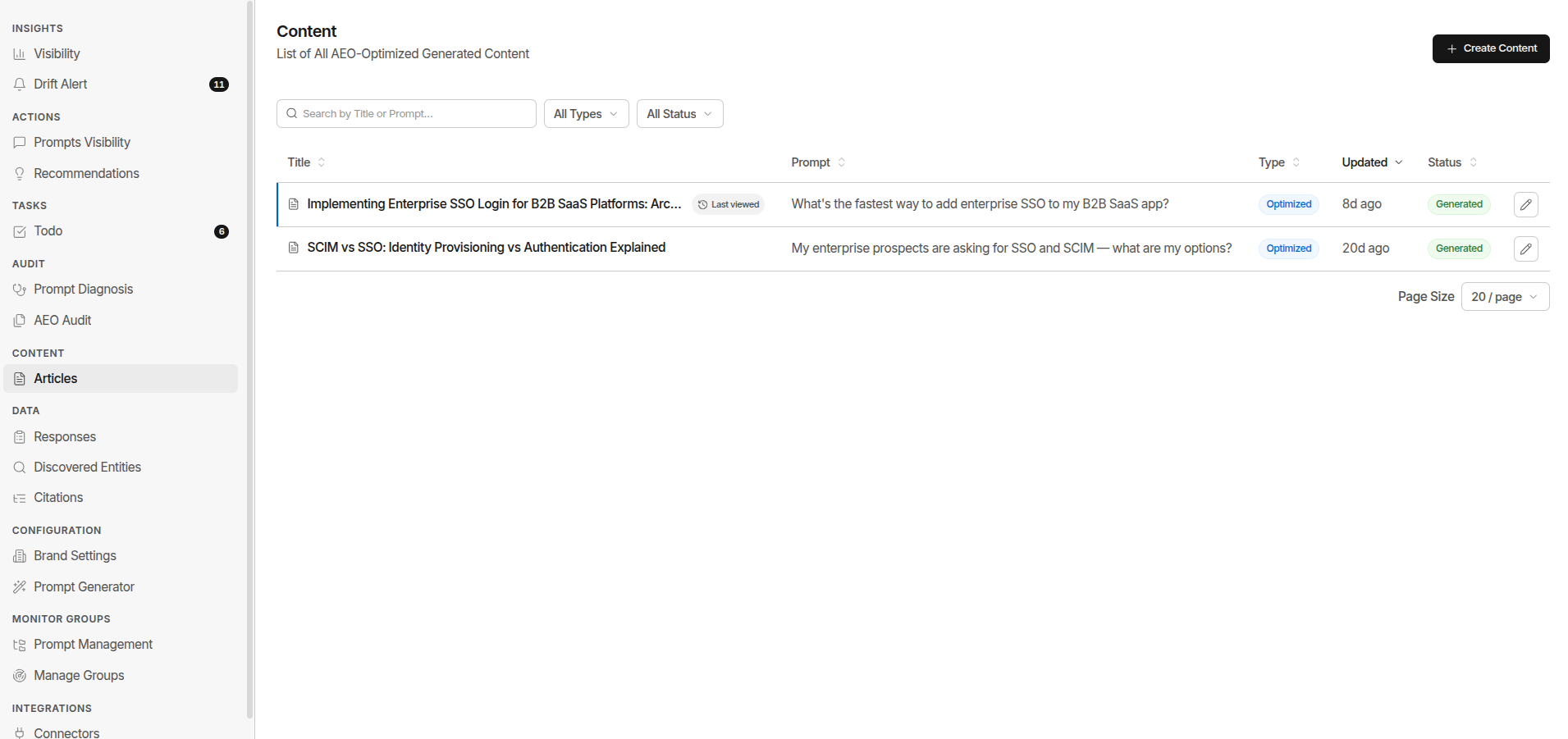
The Content list shows all your generated pieces with their current status:
| Status | Meaning |
|---|---|
| Generating | Generation is still running |
| Generated | Ready for your review and editing |
| Published | Pushed live (e.g. to WordPress) |
The list also shows each piece's Type (Optimized vs New) and the Prompt it targets, with a Type filter to switch between them.
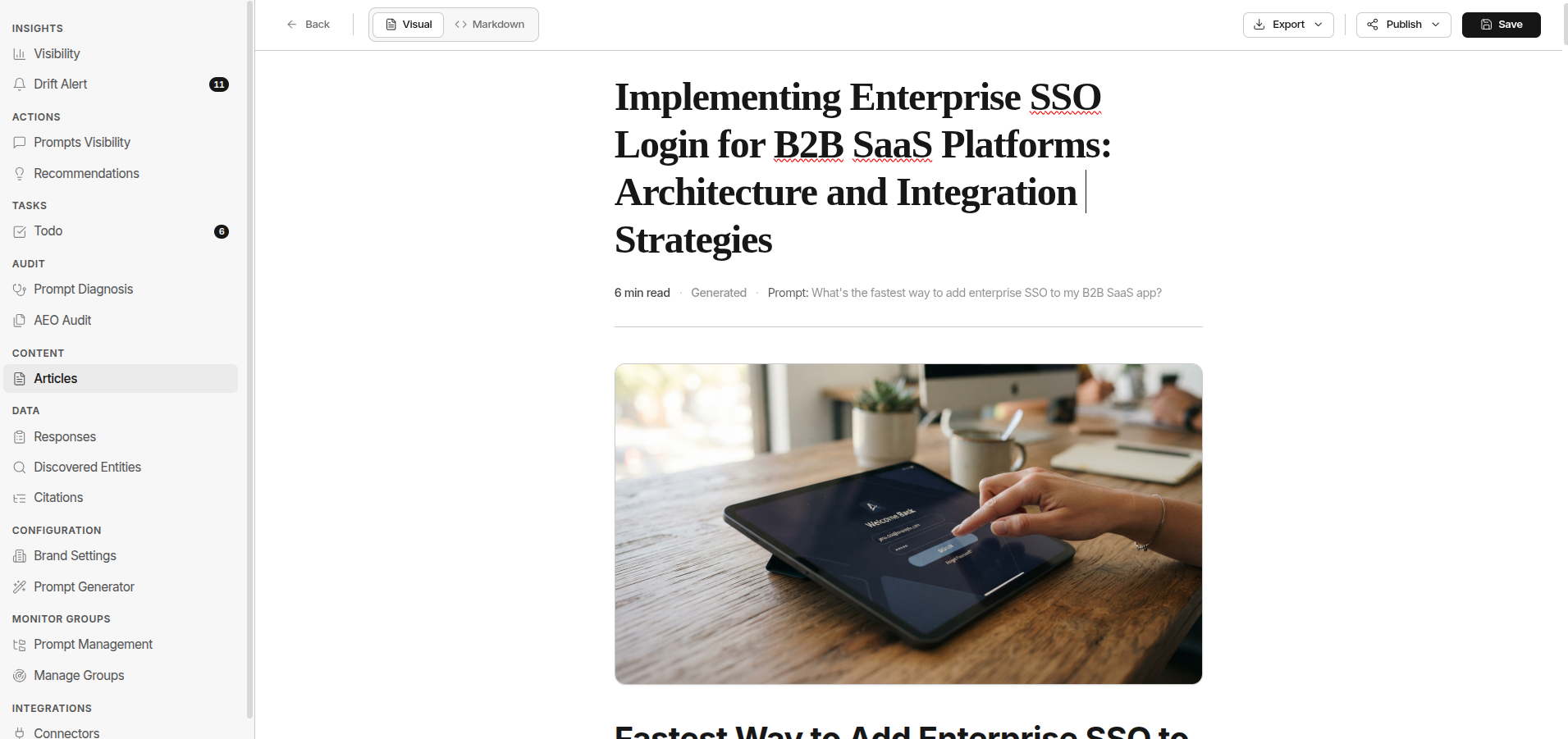
Click any piece to open the full editor where you can read, edit, and export.