AWS Route 53 and CloudFront - GrackerAI Portal
Host your GrackerAI portal at a /portal subdirectory using AWS services to map domain.com/portal to portal1.pseo.one.
Create CloudFront Distribution
Navigate to CloudFront (opens in a new tab) inside the AWS console and click on Create distribution.
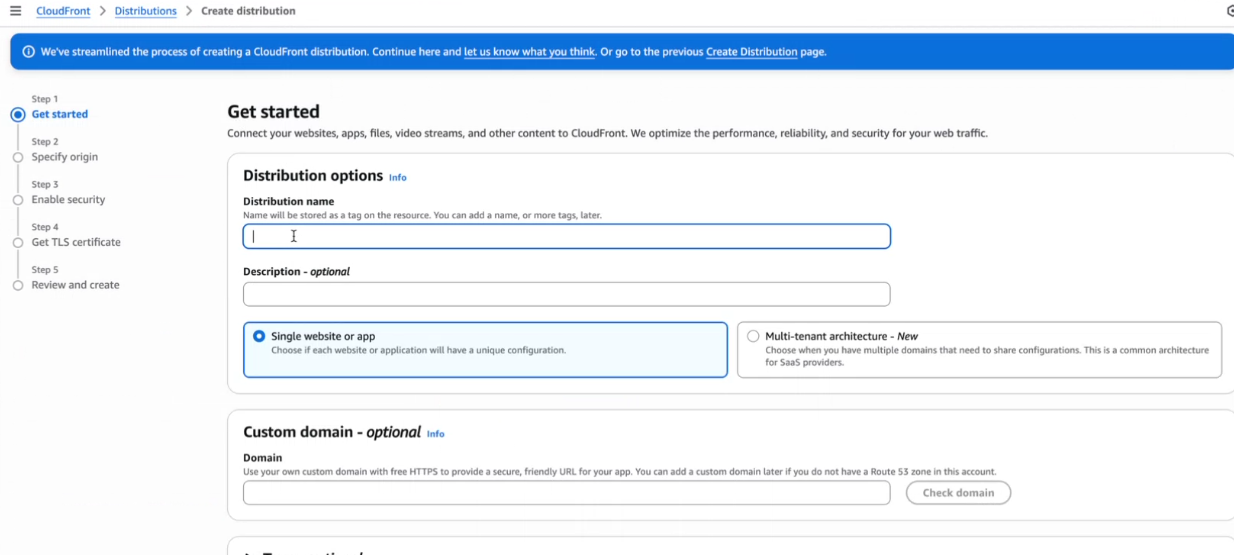
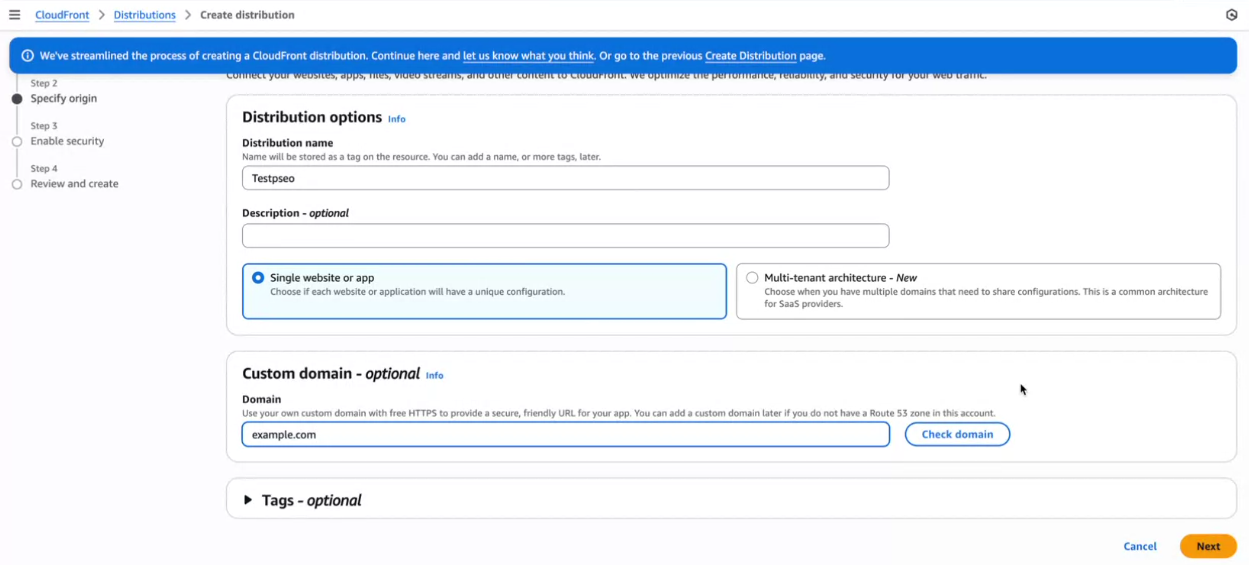
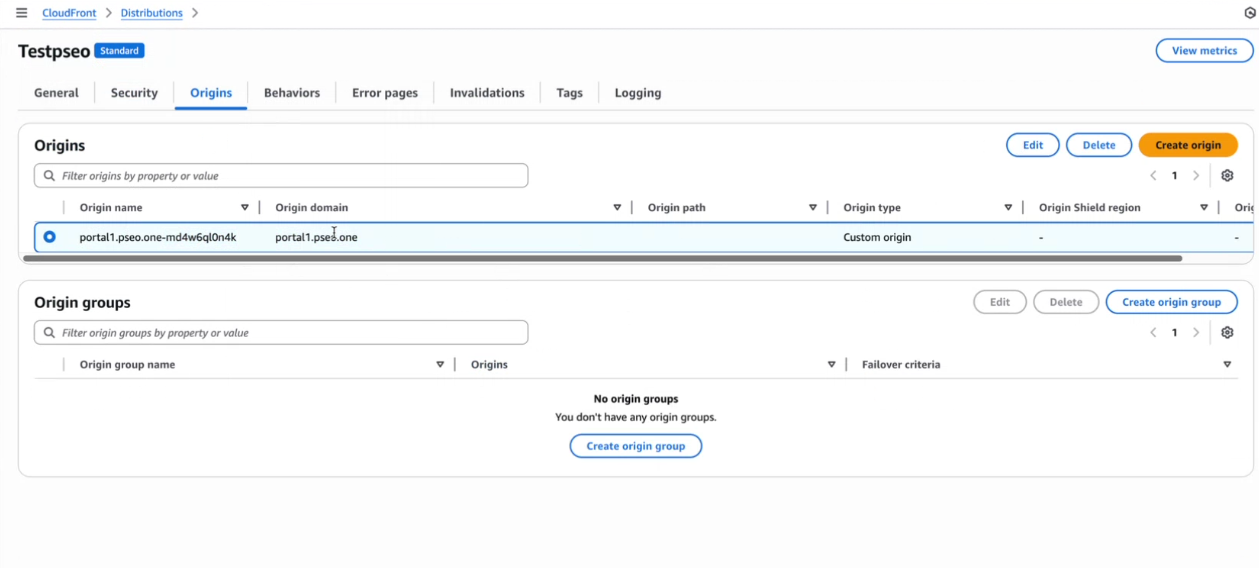
For the Origin domain, input portal1.pseo.one where your portal is currently deployed. Click on Use: portal1.pseo.one.
portal1.pseo.oneAdd Default Origin
After creating the distribution, navigate to the Origins tab.
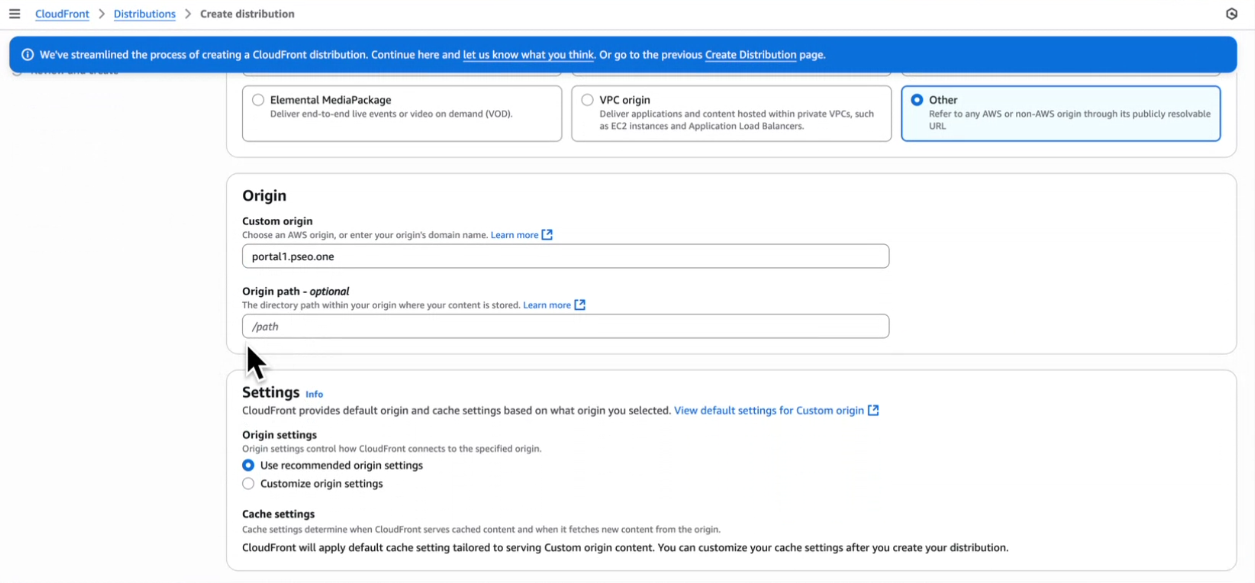
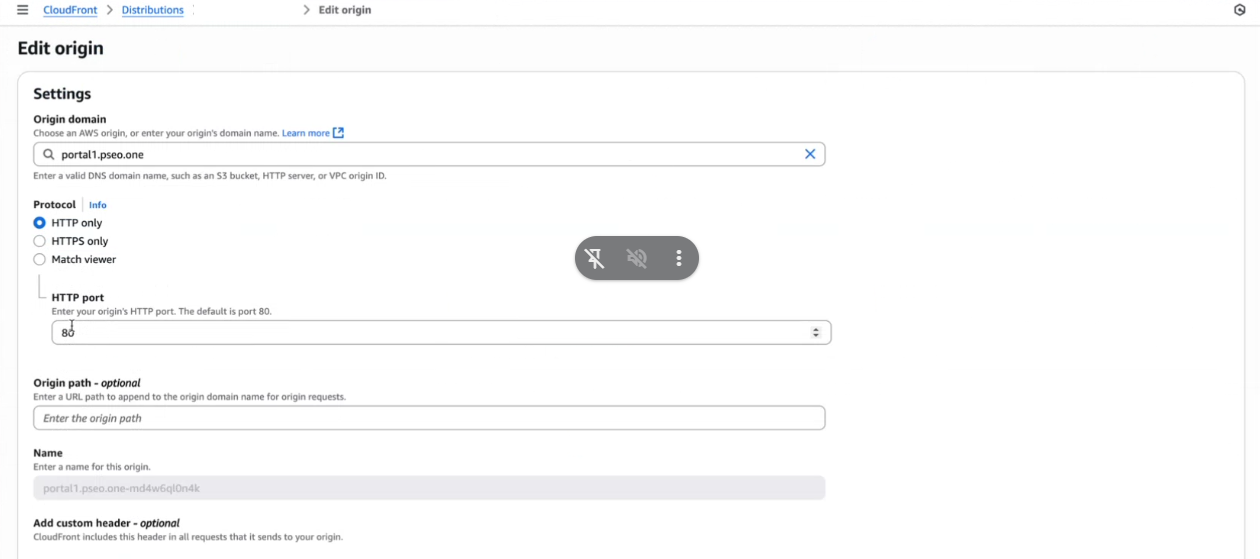
We need to add your main Domain website as the default origin. This should be where your main domain.com domain currently points to.
For instance, if your main website is hosted on:
- Vercel: Use your
.vercel.appdomain - Netlify: Use your
.netlify.appdomain - Custom hosting: Use your current hosting URL
Create a new Origin and add your main website URL as the Origin domain.
By this point, you should have two Origins:
portal1.pseo.one(for the portal)- Your main website origin (for everything else)
Set Behaviors
Behaviors in CloudFront enable control over the subpath logic. We're creating the following routing logic:
- If a user visits
/portal/*, proxy toportal1.pseo.one - If a user visits any other page, route to your main Domain website
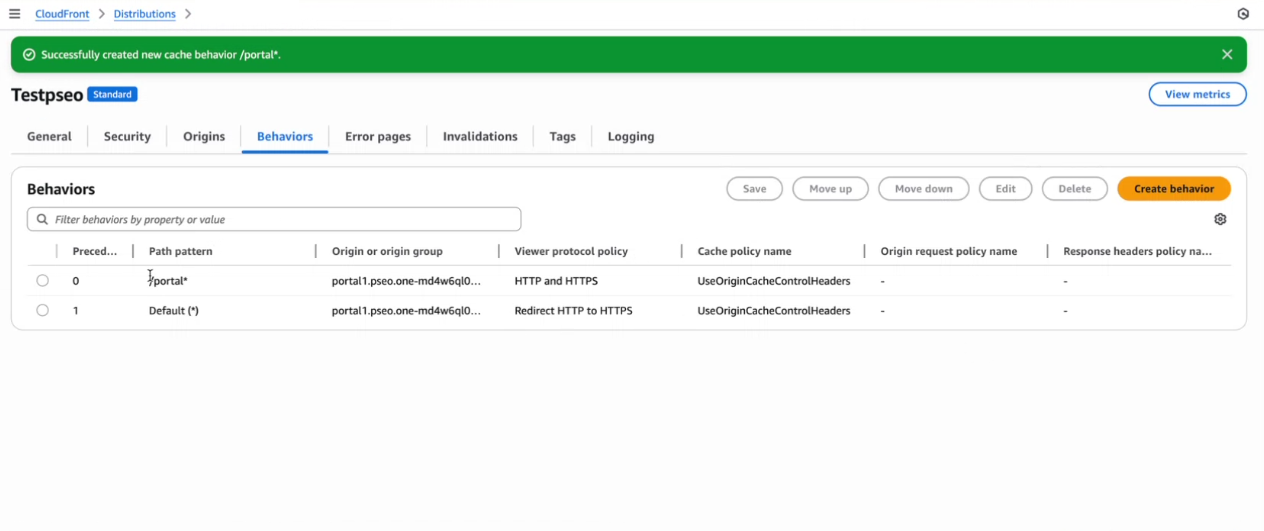
Create behavior by clicking the Create behavior button.
/portal/*
The behavior should have a Path pattern of /portal/* with Origin and origin groups pointing to portal1.pseo.one.
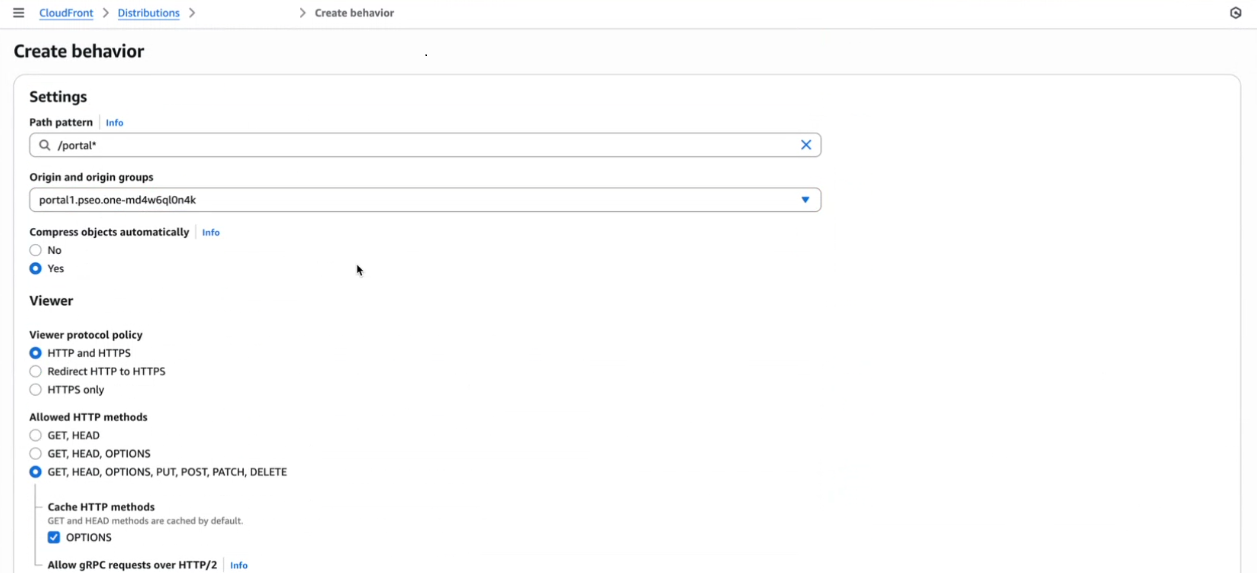
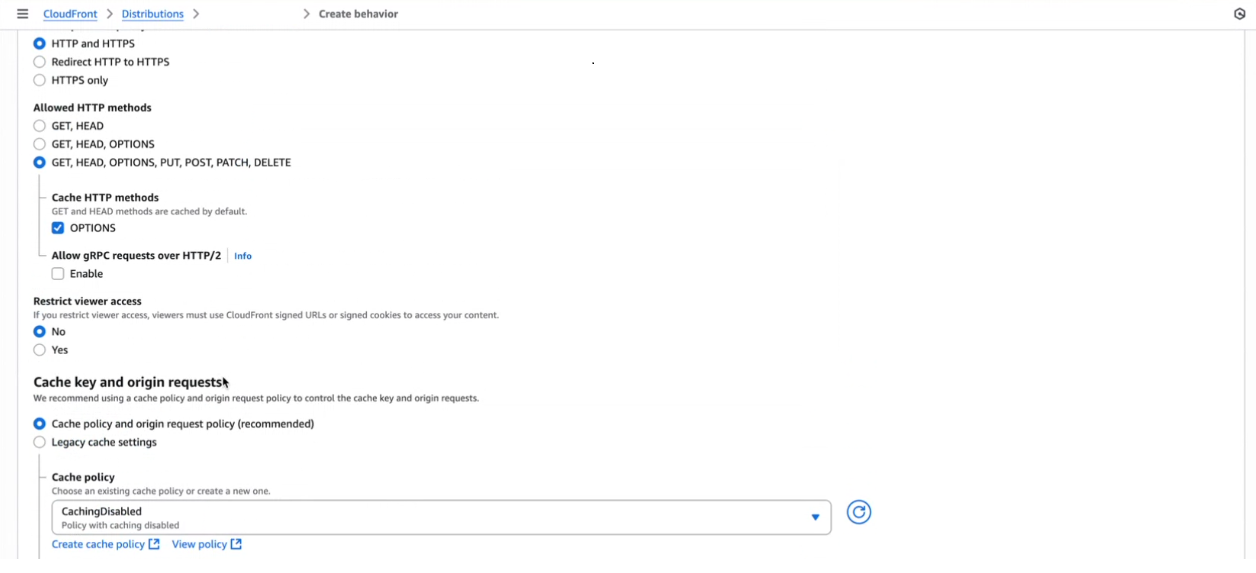
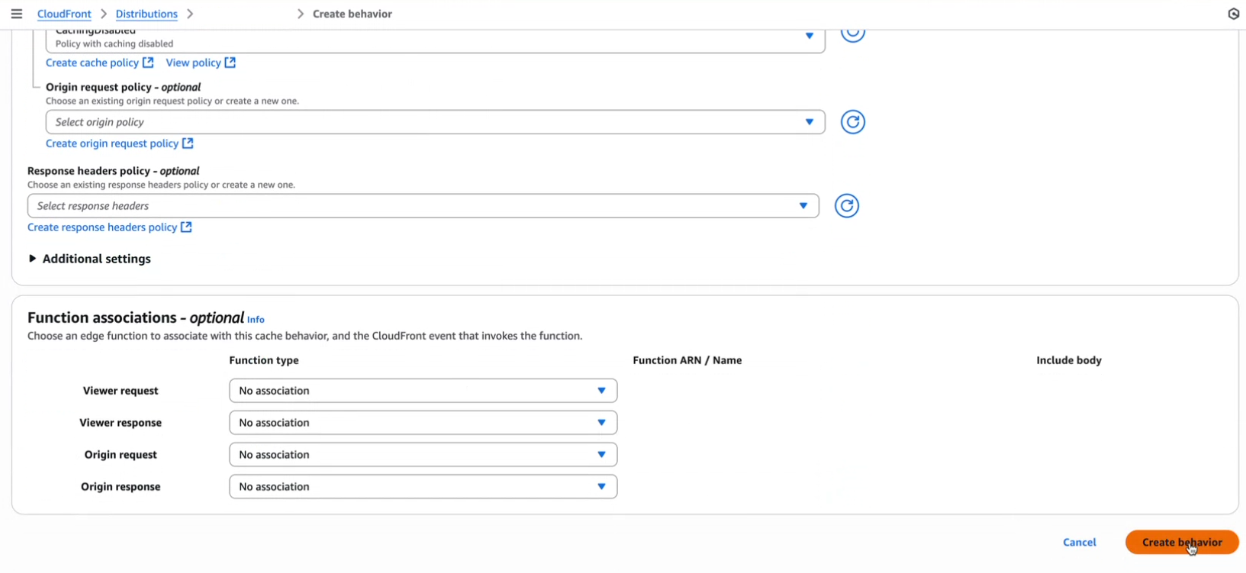
Path pattern: /portal/*
Origin: portal1.pseo.one
Click Save changes.
Preview Distribution
Test your distribution by going to the General tab and visiting the Distribution domain name URL.
- All pages should direct to your main Domain website
- Appending
/portalto the URL should proxy to portal atportal1.pseo.one
Troubleshooting
Portal Working But Pagination Not Working
If your portal is loading correctly but pagination is not working, this is likely due to CloudFront not forwarding query strings to the origin. Follow these steps to fix it:
-
Go to Behaviors in the CloudFront distribution
- Navigate to your CloudFront distribution
- Click on the Behaviors tab
-
Edit the Path Pattern
- Select the path pattern (e.g.,
/portal/*or/blog/*) - Click on Edit

- Select the path pattern (e.g.,
-
Check Origin Request Policy
- Scroll down to the Origin request policy section in the behavior settings

-
View the Policy Details
- Click on View Policy to see the current policy settings
-
Check Origin Request Settings
- Look for the Query strings setting in the Origin request settings

- If Query strings is set to None, this is why pagination is not working
- Query parameters (like
?page=2) are not being forwarded to your origin
-
Edit the Policy
- Click on Edit to modify the Origin request policy

-
Update Query String Settings
- Change Query strings from None to All or select specific query strings you need
- This will ensure pagination parameters are forwarded to your origin
- Click Save changes
-
Wait for Deployment
- CloudFront will need to deploy these changes
- This typically takes 5-15 minutes
- You can monitor the status in the Distributions list
After the changes are deployed, test your pagination to confirm it's working correctly.